
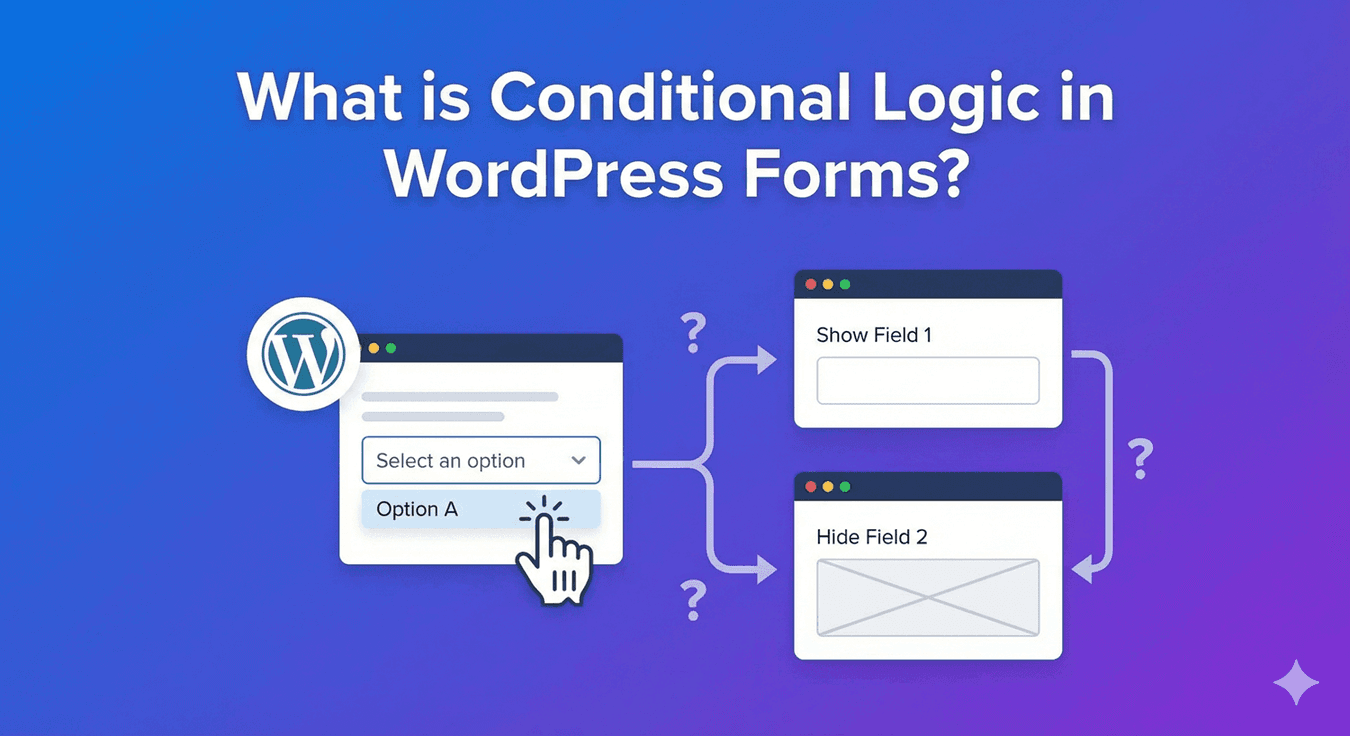
What is Conditional Logic in WordPress Forms?
If you’ve ever filled in a form where a new field appeared right after you picked a certain option — “Other (please specify)” opening a text box, say — you’ve used conditional logic without knowing its name. It’s one of the most useful things a form can do, and it’s what separates a smart, adaptive form from a static wall of fields. Here’s a plain-English explanation of what conditional logic is and why it matters.
Conditional logic, in plain terms
Conditional logic is simply a rule that makes your form react to what people answer. The pattern is always the same: if this, then that. If someone selects “Business” as their plan, then show the company-name field. If they say they’re not a returning customer, then hide the account-number field. The form changes in real time based on the answers, so each person sees a version shaped by what they’ve told you.
What it can control
In Auto Form Builder, conditional logic does more than show and hide fields — though that’s the most common use. It can:
- Show or hide any field based on earlier answers.
- Change the success message or redirect someone to a different thank-you page depending on their responses.
- Route, re-subject, or skip the admin notification email based on the answers.
- Send a different confirmation email, or none at all.
- Auto-fill or copy a value into a field when conditions are met.
So it’s not just about the fields people see — it can shape what happens after they submit, too.
Why it matters
The biggest payoff is completion. A form that shows everyone every possible field feels long and irrelevant, and long forms get abandoned. Conditional logic keeps each person’s form as short as it can be — they only see the questions that apply to them. That relevance is exactly why adaptive forms complete better than static ones. Beyond completion, it lets a single form do the work of several: one contact form can behave differently for sales, support, and general enquiries, routing each to the right place.
A few everyday examples
- A contact form that reveals an “order number” field only for existing customers.
- A survey that asks “what went wrong?” only when someone gives a low rating.
- A registration form that shows different fields depending on the ticket type chosen.
- An enquiry form that emails different departments based on the topic.
Each of these feels effortless to the person filling it in, because they never see the parts that don’t concern them.
It works without code
You don’t need to be a developer to use any of this. Setting up conditional logic is visual: select a field, choose whether to show or hide it, and add the condition that triggers the rule — combining several with AND/OR when you need precision. It works with every field, including survey fields, and for bigger forms it pairs with multi-step branching to skip entire sections.
The feature that makes forms feel smart
Conditional logic is the difference between a form that just collects answers and one that responds to them. It shortens forms, improves completion, and lets a single form handle many situations — all set up visually, no code, and free.
Related reading: What is conditional logic?, best WordPress form plugins with conditional logic, dynamic forms with conditional logic, how conditional logic improves conversion rates, and conditional logic best practices.
Ready to make your forms smarter? Install Auto Form Builder free from WordPress.org.
FAQ
What is conditional logic in simple terms?
It's a rule that makes a form react to answers — showing or hiding a field (or changing a message or email) based on what someone chose earlier.
Do I need to code to use conditional logic?
No. In Auto Form Builder you set conditional logic visually — pick a field, choose show or hide, and add a condition. No code required.