
Free Add-Ons
Stripe Payments
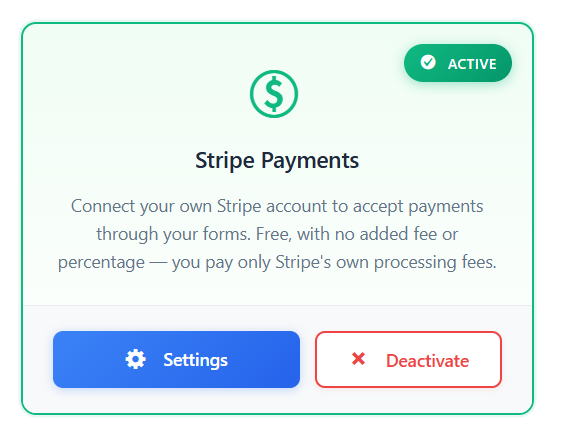
FreeAccept payments through any form with Stripe Checkout — free, built in, and off by default. Sell a course or a single product without WooCommerce, take deposits, donations or paid registrations. The amount can be a fixed price, a number the visitor enters, a live Calculation field total, or a Products field. With a Products field, Checkout shows each product on its own line with its quantity. Payment happens on Stripe's hosted Checkout page. Auto Form Builder adds no transaction fee or percentage; you pay only Stripe's standard processing fees.
You should not need a full store plugin — or a percentage skimmed by your form builder — to take a simple payment on a WordPress form.
What you can do
- Take one-time payments on any form via Stripe Checkout, using your own Stripe account.
- Set the amount as a fixed price, a Number field the visitor enters (donations or custom amounts, with optional min and max), the result of a Calculation field, or a Products field.
- With a Products field, Stripe Checkout is itemized: each product is on its own line with its quantity. Prices come from the form, not from the visitor's browser.
- Sell a course, a single product, a deposit, a paid registration or a donation without installing WooCommerce.
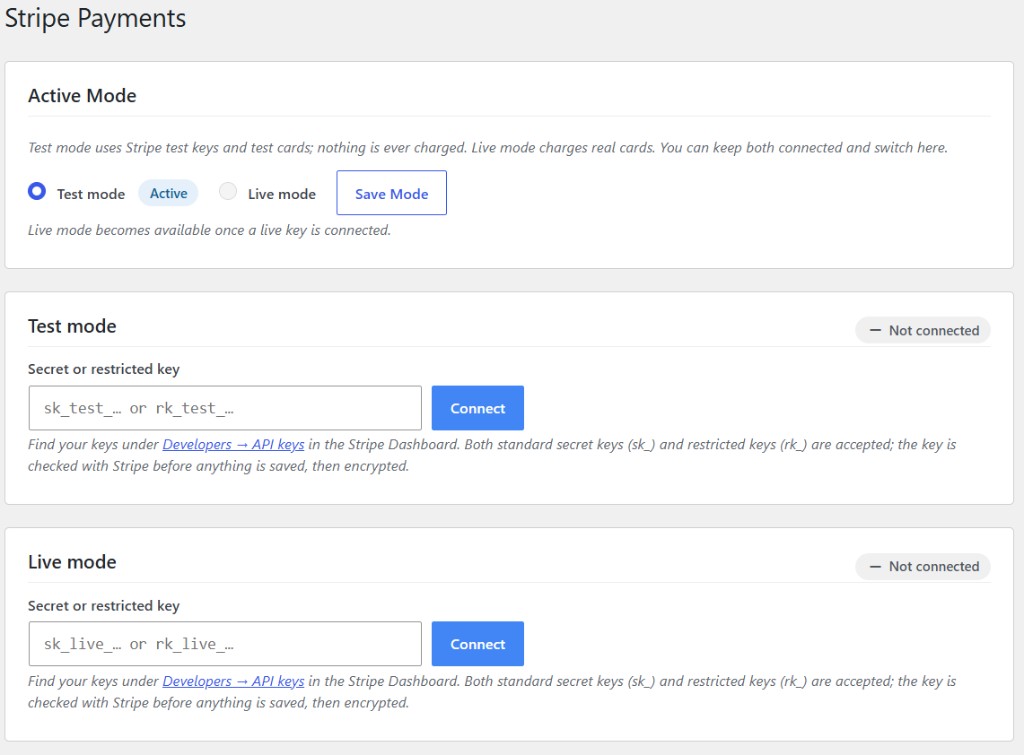
- Use test mode while you configure, then switch to live when you are ready — both modes are supported.
- See payment status on every entry: a Payment column and filter on Submissions, a payment panel on each entry, and payment columns in CSV exports.
- Track refunds automatically when they happen in Stripe — status stays in sync on the entry.
- Send notification emails only after Stripe confirms the payment, with tags such as {payment_amount}, {payment_currency}, {payment_status} and {payment_id}.
- Let the plugin create the Stripe webhook for you so payment events reach your site without manual endpoint setup.
Why it matters
Checkout belongs next to the form that collected the order — not in a separate tool you glue together later. Stripe Payments is a free built-in add-on: enable it under Forms → Add-Ons, connect your Stripe keys, and turn payments on per form. There is no plugin fee and no percentage on top of Stripe. Merchants pay only Stripe's own processing fees.
Who it is for: creators selling a course or a single digital product, nonprofits taking donations, coaches and clinics collecting deposits, and event organizers charging for registration — anyone who needs payment on a form without running a full store. What ships today: Stripe Checkout for one-time payments, four amount sources (fixed, visitor-entered number, Calculation field, and a Products field with itemized Checkout), automatic webhook setup, test and live modes, payment status on entries and in exports, and refund sync from Stripe. What does not ship yet: PayPal, subscriptions or recurring billing, coupons, embedded (on-page) Checkout, or Stripe Tax — do not expect those in this release. Recurring billing is coming soon.
How to use it
- Install Auto Form Builder free from WordPress.org, then open Forms → Add-Ons and enable Stripe Payments.
- Connect your Stripe account by adding your Stripe secret key (use test keys first if you want to practice safely).
- On the form you want to charge for, enable payments and choose the amount source: a fixed price, a Number field, a Calculation field, or a Products field.
- Submit a test payment in test mode, confirm the entry shows the paid status, then switch to live mode when you are ready.
Related
FAQ
Is Stripe Payments free? Does the plugin take a fee?
Yes — Stripe Payments is a free built-in add-on. Auto Form Builder adds no transaction fee and no percentage. You pay only Stripe's standard processing fees on each successful charge.
What can I charge for today?
One-time payments through Stripe Checkout. The amount can be fixed, typed by the visitor (for example a donation), computed by a Calculation field, or taken from a Products field, with each product on its own line and its quantity. Recurring billing is not available yet and is coming soon. PayPal, coupons, embedded Checkout and Stripe Tax are not included in this release.
How does setup work?
Enable the add-on, connect your Stripe key, turn payments on for a form, and choose where the amount comes from. The plugin sets up the Stripe webhook for you. Use test mode until a trial payment looks correct, then go live.
Where do I see payment status?
On the Submissions screen (Payment column and filter), on each entry's payment panel, in CSV exports, and in notification emails after Stripe confirms the payment. Refunds made in Stripe are reflected on the entry automatically.