
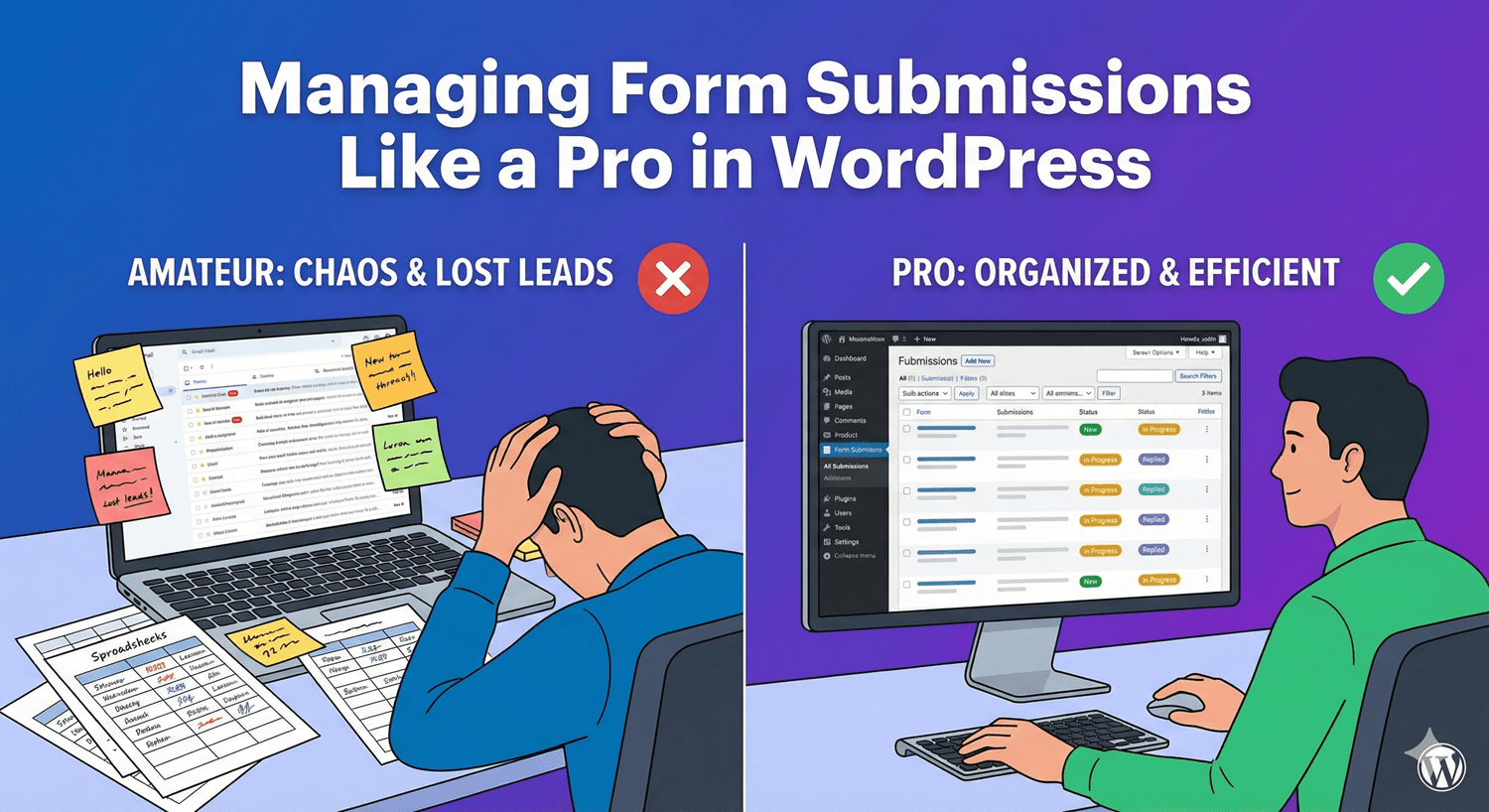
Managing Form Submissions Like a Pro in WordPress
Collecting submissions is easy. Handling a lot of them well — without losing leads, missing urgent requests, or drowning in a cluttered inbox — is a skill, and it comes down to having a system. Auto Form Builder’s submissions dashboard gives you all the tools; this guide is about using them like a pro, turning a chaotic pile of entries into a smooth, reliable workflow.
Treat the dashboard as your source of truth
The first mindset shift: your submissions dashboard, not your email, is the system of record. Email is a useful alert, but it’s a poor place to manage work — messages get buried and deleted. Every submission is stored in the dashboard regardless of email, so make it the place you actually work from. Everything else builds on that.
Triage with read and unread
New entries arrive as unread, which is your inbox for forms. Work through them like email: as you deal with each, mark it read so your unread count reflects what still needs attention. When entries pile up, bulk actions let you mark many read at once. The goal is a clean unread tab that always shows exactly what’s outstanding.
Star your priorities
Not every submission is equal, so surface the ones that matter. Star hot leads, urgent requests, and anything you’re mid-conversation on — they collect in the Starred tab as a live shortlist you can jump to instantly. Our guide to starring important submissions covers the workflow; the short version is: star what needs you, clear the star when it’s done, and the Starred tab becomes your to-do list.
Categorize with tags
For anything beyond a simple triage, tags bring real organization. With the free Entry Tags add-on you can color-code entries — New Lead, In Progress, Converted, Support, Urgent — and filter by tag in one click. It turns a flat list into a categorized workflow where you can see, at a glance, what kind of submission each one is and where it stands.
Find anything with search and filters
A pro never scrolls. Search by any field value — name, email, reference — and filter by form or date range to zero in on exactly the entries you need. Whether it’s “that enquiry from last Tuesday” or “every submission mentioning a product,” the right combination of search and filters gets you there in seconds.
Keep spam out of the workflow
Spam clutters your inbox and wastes triage time. Turn on spam protection so most junk never arrives, and use the Spam tab and bulk Mark as Spam to clear anything that slips through. A clean inbox is a fast inbox.
Export for reporting and backup
Finally, get your data out when you need it. Export submissions to CSV or JSON for reporting, analysis, or a backup. Filter to a period or a form first, and you can export exactly the slice you want — perfect for campaign reporting or a monthly summary.
The pro workflow, in short
- Work from the dashboard, not your email.
- Triage with read/unread so nothing outstanding gets lost.
- Star priorities into a live shortlist.
- Tag entries to categorize and track them.
- Search and filter to find anything instantly.
- Keep spam out, and export when you need to report.
A repeatable routine like this is what separates “collecting submissions” from “managing them” — and it means every lead gets handled and none slip away. It’s all built in, and free.
Ready to run your submissions like a pro? Install Auto Form Builder free from WordPress.org.
FAQ
What's the best way to manage a lot of form submissions?
Build a routine: triage new entries with read/unread, star priorities, tag by type, filter and search to find things fast, and export for reporting. The dashboard supports all of it.
How do I stop losing leads in a busy inbox?
Use the Starred tab for priorities and tags to categorize entries, so important submissions are never buried and every lead has a clear status.