
How to Filter Form Submissions by Date
When submissions pile up, time is often the fastest way to find what you need. “Everything from the launch week,” “entries since Monday,” “last month’s enquiries” — these are date questions, and filtering by date answers them in seconds instead of endless scrolling. Auto Form Builder’s submissions dashboard makes date filtering quick and easy. Here’s how to use it.
Why date filtering is so useful
Dates are one of the most natural ways to think about submissions. You rarely need “submission #4,182” — you need “the enquiries that came in during the sale” or “everything from yesterday.” Filtering by date maps directly onto how you actually work, letting you isolate a specific window of activity and ignore everything outside it.
Filter by a date range
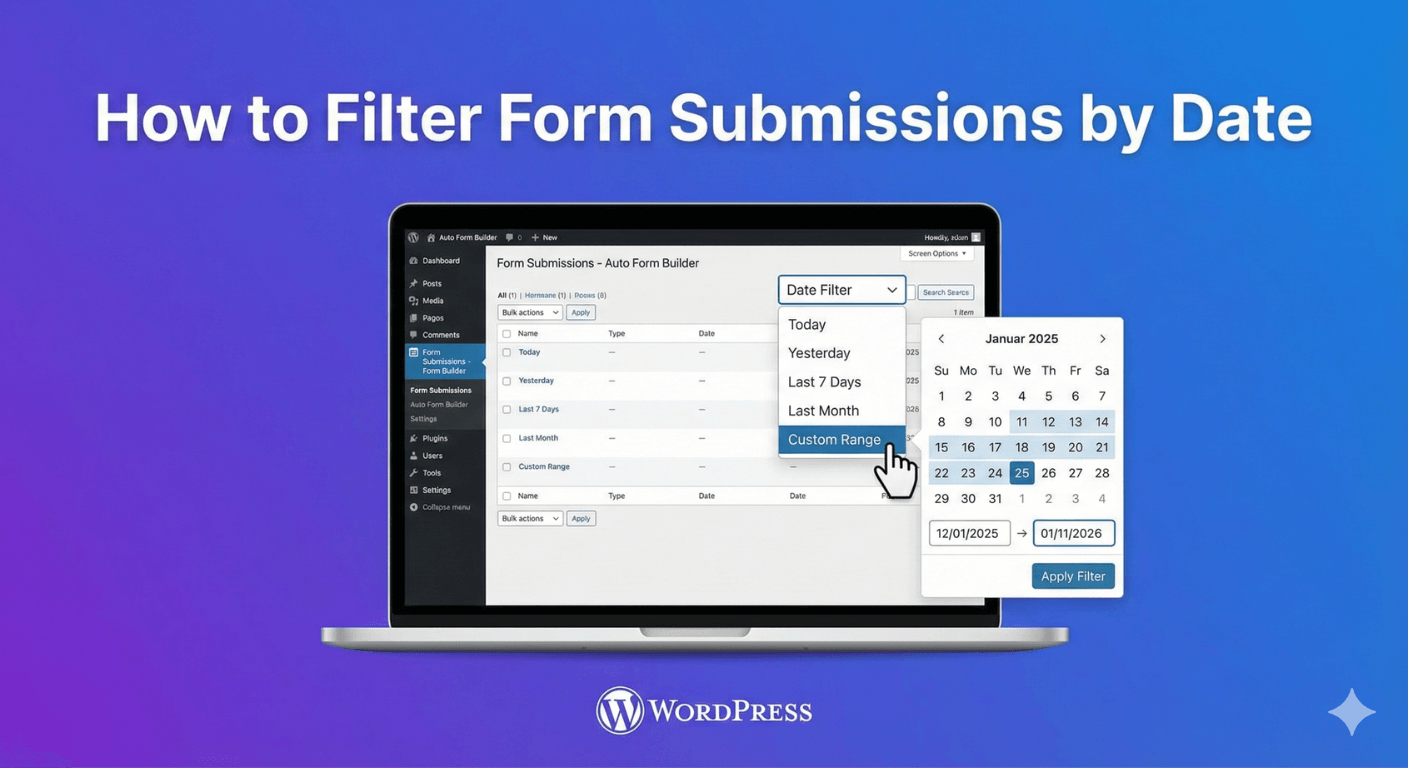
In the submissions dashboard, set a date filter to view only the entries from the period you care about — a single day, a week, a campaign window, or any range you choose. The list narrows to just those submissions, so instead of paging through your entire history, you’re looking at exactly the slice you asked for. It’s the fastest way to answer “how many came in during X?” or “let me see everything from that week.”
Combine with search and form filters
Date filtering gets even more powerful in combination. Pair a date range with a search term to find, say, every submission mentioning a particular product during last month. Or combine it with a specific form to see only contact enquiries from a given week. Layering these filters lets you drill from thousands of entries down to the precise handful you need — this is the same approach covered in our guide to searching form submissions, with time added as the anchor.
Sort the filtered results
Once you’ve filtered to a date range, sort the results to bring the most relevant entries to the top — newest first to see the latest activity, or oldest first to work through a backlog in order. Between filtering and sorting, your submissions organize themselves around exactly the question you’re asking.
Put the filtered set to work
A date filter isn’t just for viewing — it sets you up to act. From a filtered list you can work through the entries, apply bulk actions to the whole set, or export just that period’s submissions to CSV or JSON for reporting. Reporting on a campaign becomes simple: filter to the campaign dates, export, done.
See the bigger picture with analytics
Filtering shows you individual entries in a period; when you want the trend rather than the entries, form analytics shows views, submissions, and conversion rates over time. Use date filtering to dig into specific submissions, and analytics to understand the overall pattern.
Find the right window, fast
- Set a date range to isolate the period you care about.
- Combine it with search or a form filter to narrow further.
- Sort to bring the right entries to the top.
- Export the filtered set for reporting on a specific period.
Date filtering turns a sprawling submissions list into something you can query by time — exactly how you tend to think about your entries. And it’s free, no code required.
Ready to find any submission by date? Install Auto Form Builder free from WordPress.org.
FAQ
Can I filter submissions by a date range?
Yes. The submissions dashboard lets you filter by date, so you can view entries from a specific day, week, or period, then sort and export them.
Can I combine a date filter with a search?
Yes. Combine a date range with a search term or a specific form to narrow down to exactly the submissions you're after.