
How to Bulk Manage Form Submissions in WordPress
A busy form is a good problem to have — until you’re staring at a screen full of submissions and clicking through them one at a time. Marking each entry read, starring the important ones, clearing out spam: done individually, it’s tedious. Auto Form Builder’s submissions dashboard lets you handle many entries at once with bulk actions. Here’s how to keep a full inbox under control in a few clicks.
Select the submissions you want
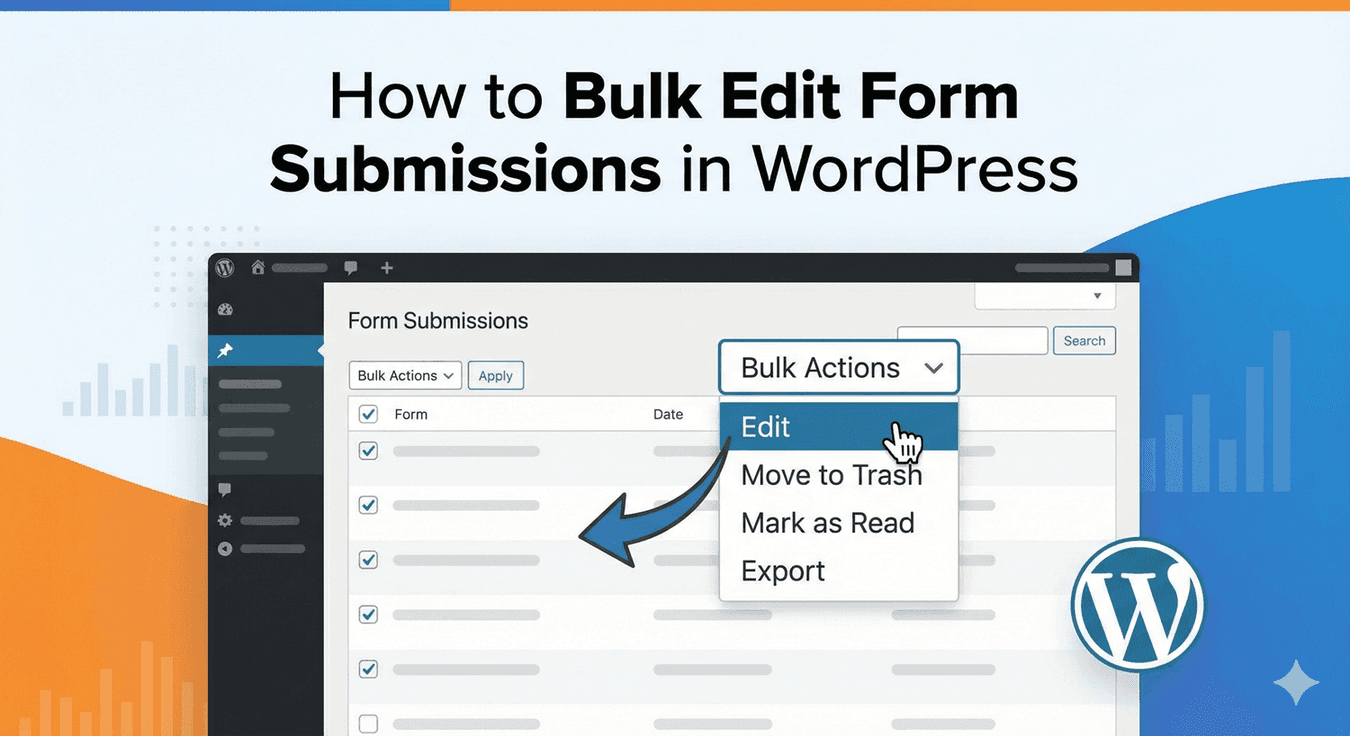
At the top of the submissions list is a checkbox on each row (and one in the header to select everything on the page). Tick the entries you want to act on — a handful, or the whole page — and they’re ready for a bulk action. Combine this with the tabs (Unread, Starred, Read, Spam, Trash) to work through one group at a time.
Choose a bulk action
With entries selected, open the Bulk actions dropdown and pick what to do, then click Apply. The available actions are:
- Mark as Read / Mark as Unread — clear down your unread count, or flag entries to revisit.
- Add to Starred / Remove from Starred — batch-star a set of important submissions.
- Mark as Spam — move junk out of your main view in one go.
- Move to Trash — clear out entries you don’t need.
- Delete Permanently — remove entries for good when you’re sure.
That turns what would be dozens of individual clicks into a single action across your whole selection.
Narrow the list first with search and filters
Bulk actions are most powerful when you’ve first filtered down to exactly the right entries. Search by any field value — name, email, phone, reference — and filter by form or by date range, then sort the results. Want to clear every spam-looking entry from last week, or star every submission from a particular campaign? Filter to that set, select all, and apply the action once.
Know what bulk actions do — and don’t do
It’s worth being clear on this: bulk actions change a submission’s status and organization — whether it’s read, starred, spam, or trashed — not the data the visitor actually submitted. They’re for managing your queue, not rewriting entries. If you need to work with the content itself, open the individual entry to view its full details, or use Export to pull your submissions into CSV or JSON, where you can analyze or process the data in bulk elsewhere.
Keep spam from piling up
The fastest way to reduce bulk cleanup is to stop spam arriving in the first place. Turn on built-in spam protection — reCAPTCHA or Cloudflare Turnstile — so automated junk is caught before it clutters your list, and use the bulk Mark as Spam action to clear anything that slips through.
Stay on top of a busy inbox
- Filter or search to the exact set of entries first.
- Select them with the checkboxes.
- Apply one bulk action — read, star, spam, or trash — to the whole set.
- Export when you need to work with the submitted data itself.
Bulk management turns a overflowing submissions list from a chore into a quick, orderly routine — and, like the rest of Auto Form Builder’s core, it’s free.
Ready to take control of your submissions? Install Auto Form Builder free from WordPress.org.
FAQ
Can I apply an action to many submissions at once?
Yes. Select multiple entries with the checkboxes, choose a bulk action — Mark as Read, Add to Starred, Mark as Spam, Move to Trash, and more — and click Apply.
Can I edit the content of a submission?
Bulk actions change a submission's status and organization (read, starred, spam, trash), not the data a visitor submitted. To act on the content, open the entry, or export your submissions to CSV or JSON.