
How to Add Text Fields to WordPress Forms
The text field is the most-used element on almost any form — it’s where names, subjects, reference numbers, and countless short answers get collected. It looks simple, and it is, but it also carries a surprising number of options that turn a plain box into a field that collects exactly the input you want. Here’s how to add one in Auto Form Builder and get the most from it.
Add a text field
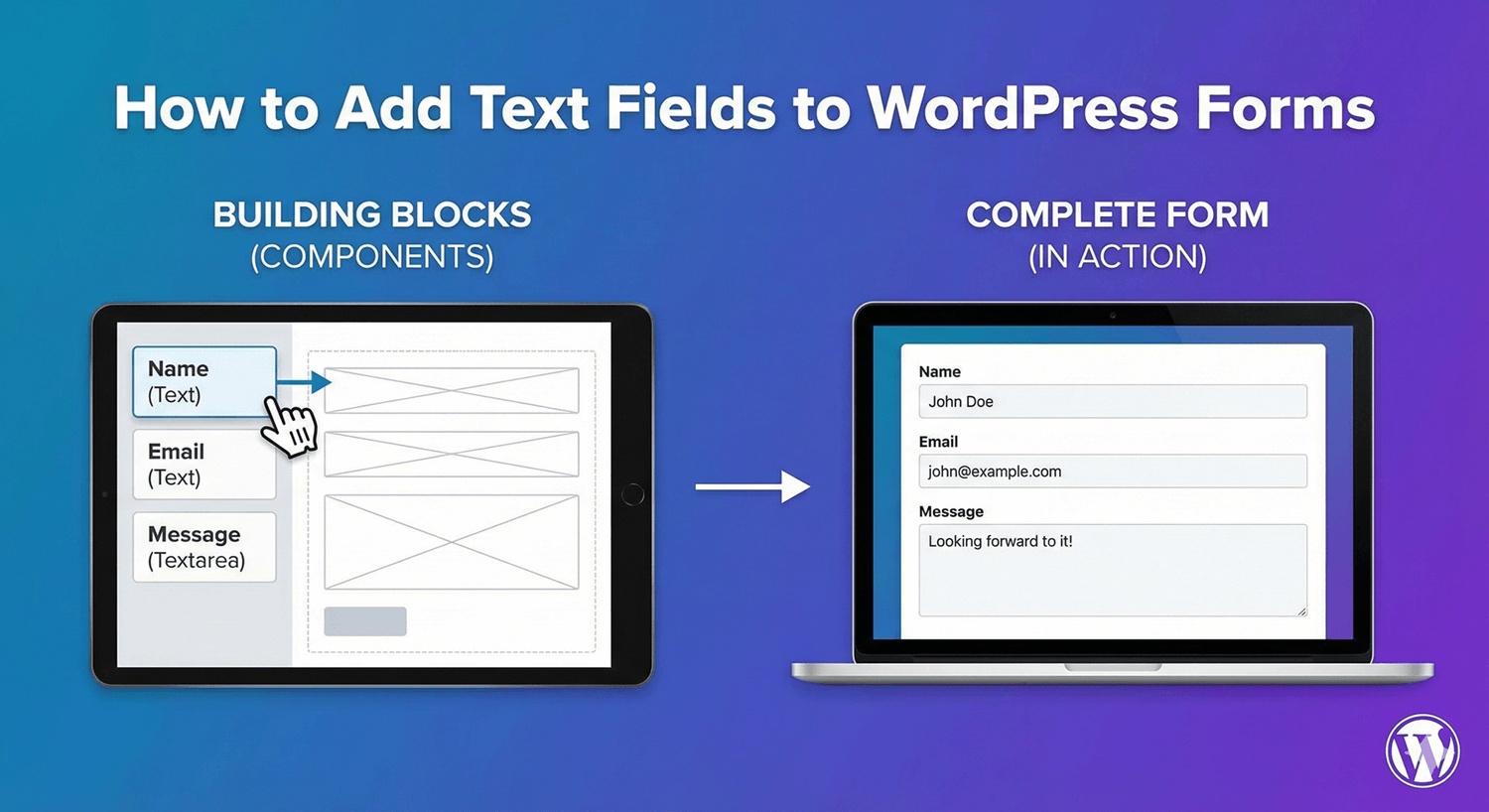
Open your form in the drag-and-drop builder and drag a Text field onto the canvas. Click it to open its properties, then give it a clear label — the label is what tells people what to enter, so make it specific (“Company name,” not just “Name”).
Guide input with a placeholder and default
Two small settings make a field easier to complete. A placeholder shows example text inside the field before anyone types, hinting at the expected format. A default value pre-fills the field when the form loads, which is handy when there’s a common answer. Both reduce hesitation and speed people up.
Keep input clean with validation and length
This is where a text field earns its keep. You can apply validation rules so input has to fit a format, and set minimum and maximum length so answers aren’t too short or too long. When something doesn’t fit, the field shows an inline error and blocks submission until it’s corrected. You can also trim extra spaces from the start and end of what people type, so stray whitespace doesn’t end up in your data.
Use special modes when you need them
The same text field can take on specific jobs:
- Mask it as a password field when you need to collect a value privately.
- Turn it into a hidden field to carry data through the form without showing it to the visitor.
- Transform the text on submit — for example, standardizing how it’s stored.
These modes mean you don’t need a separate field type for every situation; the text field flexes to fit.
Add icons and pre-fill from a link
You can place an icon inside the field or beside its label to make its purpose obvious at a glance, and you can pre-fill the field from a URL parameter — useful for campaign links or passing known data into an embedded form.
Choose text field vs textarea
A single-line text field is for short answers. When you expect a longer response — a message, a description, a comment — use a Textarea instead, which gives people a multi-line box. Matching the field to the expected answer length makes the form feel right and keeps your data appropriately sized.
The most flexible field you’ll use
The text field is deceptively powerful: a label, a placeholder, some validation, and the right mode, and you’ve got a field tailored to exactly what you need. Master its options and you’ll reach for it constantly — and it’s free, like the rest of the core.
Related reading: Character limits, custom validation patterns for text fields, text transformation, and large text areas for messages.
Ready to start building? Install Auto Form Builder free from WordPress.org.
FAQ
What's the difference between a text field and a textarea?
A text field is a single line for short answers; a textarea is a multi-line box for longer input like messages. Use each to match the answer length you expect.
Can I control what people enter in a text field?
Yes. You can set a placeholder, a default value, length limits, and validation rules, and even mask input as a password — all on the same field.