
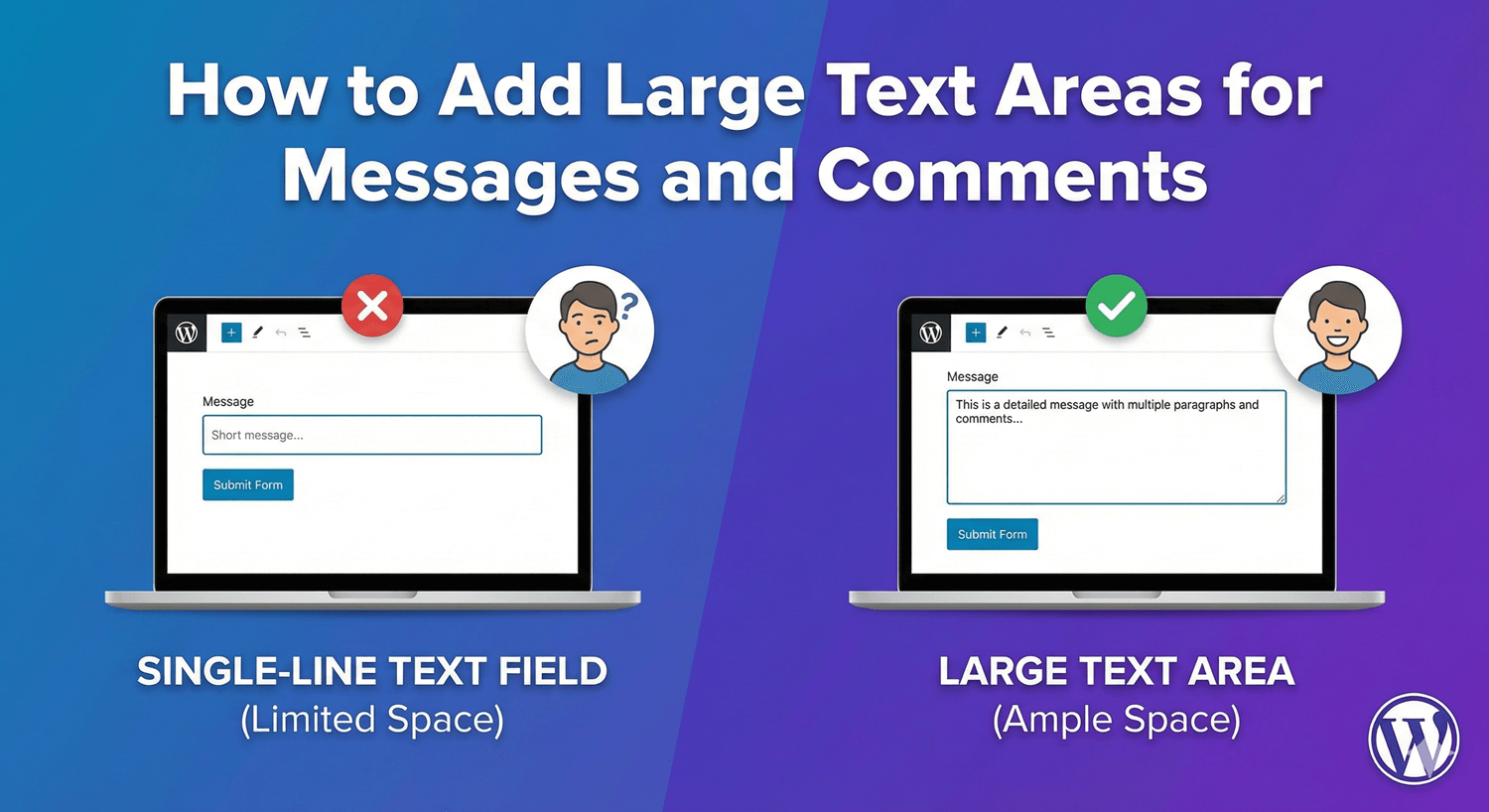
How to Add Large Text Areas for Messages and Comments
Some answers need room. A support message, a project description, a comment, a “tell us more” — cram those into a single-line box and people feel boxed in, literally. A textarea gives them space to write, which means better, fuller answers for you. Here’s how to add a large text area with Auto Form Builder’s Textarea field and set it up well.
Text field vs textarea
The distinction is simple but important. A single-line Text field is for short answers — a name, a subject, a code. A Textarea is a multi-line box for longer input — messages, comments, descriptions, feedback. Using the right one matters: a textarea for a name is overkill, and a single-line field for a message signals “keep it short” when you actually want detail. Match the field to the length of answer you expect.
Add a textarea
Drag a Textarea field onto your form and label it clearly. The label sets expectations — “Your message,” “Tell us about your project,” “Additional comments” all invite the kind of longer answer a textarea is for. A good label paired with the visibly bigger box tells people they have room to explain.
Size it appropriately
You can adjust the textarea’s height so it fits the answer you’re expecting. A contact message might warrant a few rows; a detailed brief might want more. Sizing it right does subtle but real work: a box that’s visibly generous encourages fuller answers, while one that’s cramped suggests brevity. Set the height to match the depth of response you actually want.
Set length limits
A textarea benefits from bounds. Set a minimum length to encourage substance — it nudges people past a one-word “info” on a field where you asked them to explain. Set a maximum length to keep things manageable and prevent rambling or copy-paste dumps. Our guide to character limits covers this in depth; the short version is that a sensible floor and ceiling get you answers that are detailed but not unwieldy.
Guide people with placeholder and help text
A placeholder inside the box can hint at what to include (“Let us know how we can help…”), and help text below it can add guidance without cluttering the label. On a message or description field, a little direction produces noticeably more useful responses — people write better answers when they know what you’re looking for.
React to what’s written
Like any field, a textarea works with conditional logic, so its presence can depend on earlier answers — showing a “Please describe the issue” box only when someone selects a problem type, for example. That keeps the form short for people who don’t need to write anything, while giving room to those who do.
Add a textarea the right way
- Use a textarea for messages, comments, and longer answers.
- Label it to invite the depth you want.
- Size the box to match the expected answer length.
- Set minimum and maximum length limits.
- Add placeholder or help text to guide better responses.
A well-set-up textarea is the difference between terse, unhelpful answers and the detail you actually need. It’s one of the most-used fields on contact and feedback forms, and it’s free, no code required.
Ready to give people room to write? Install Auto Form Builder free from WordPress.org.
FAQ
What's the difference between a text field and a textarea?
A text field is a single line for short answers. A textarea is a multi-line box for longer input like messages, comments, and descriptions.
Can I control how long a message can be?
Yes. You can set minimum and maximum length limits on a textarea, so answers are substantial enough without becoming unwieldy.