
Character Limits: Minimum and Maximum Length Validation
Length matters more than people think. A “tell us about your project” box that accepts a one-word answer gives you nothing to work with; a reference-number field that accepts a 500-character essay invites junk. Setting minimum and maximum length rules on your fields keeps the input the right size — detailed where you need detail, tidy where you need brevity. Here’s how to use character limits in Auto Form Builder.
Why length rules improve your data
Character limits do two useful jobs at once. A minimum length stops throwaway answers — it nudges people to actually explain when you’ve asked them to. A maximum length keeps things manageable, preventing overly long entries that clutter your dashboard, break exports, or don’t fit where the data ends up. Together they shape input into something consistent and usable instead of a grab-bag of one-word replies and rambling paragraphs.
Set a minimum length
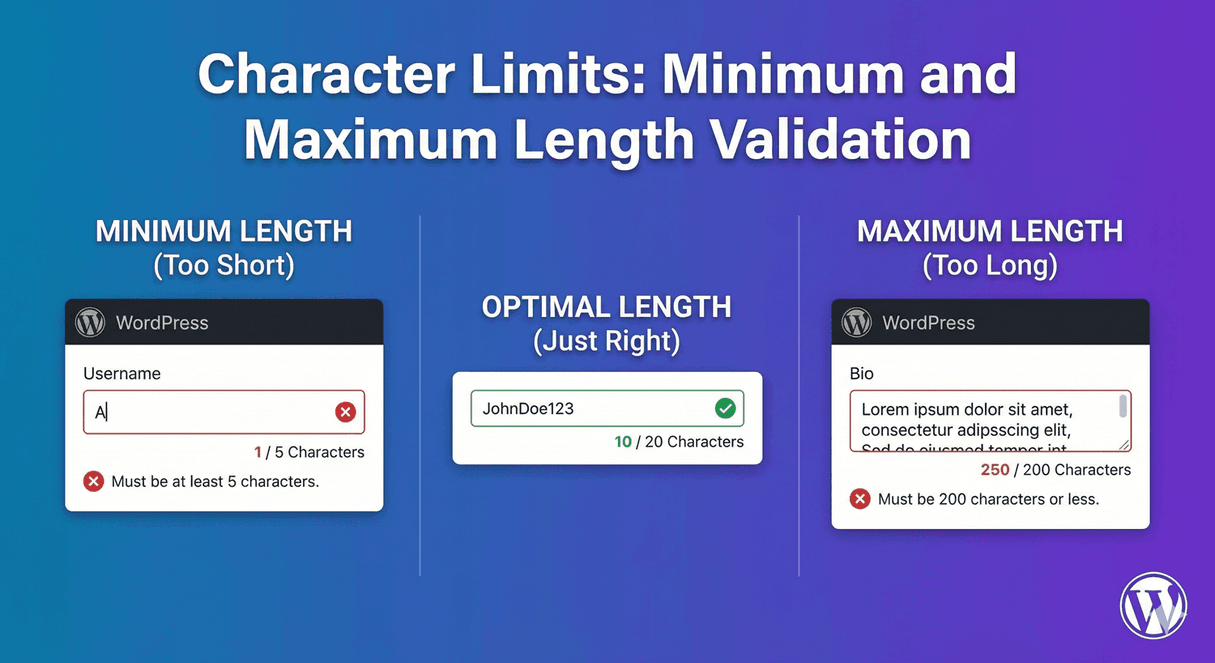
Use a minimum length when a field needs real substance. A message field on a support form, a project-description box, or a “reason for contact” field all benefit from a floor that discourages “hi” or “info.” When someone tries to submit less than the minimum, the field flags an inline error and asks them to add more before the form goes through.
Set a maximum length
Use a maximum length to keep input bounded. Short, structured fields — a reference code, a subject line, a username — should have a ceiling so they stay clean. It also quietly discourages spam and copy-paste dumps. If someone exceeds the limit, they’re prompted to shorten it before submitting.
Inline validation does the work
The point of length rules is that they’re enforced at the moment of entry, not discovered later. When input doesn’t fit, the field shows an inline error, marks the field, and blocks submission until it’s corrected — and the error clears as soon as the visitor fixes it. That keeps the experience smooth: people are guided to the right answer rather than bounced with a vague “something went wrong.”
Match the field to the job
Length rules apply where they make sense:
- Use them on Text fields for short, bounded inputs like codes, subject lines, or names.
- Use them on Textarea fields for longer answers where you want enough detail without an essay.
- Combine with the field’s other validation options when you need format rules as well as length.
Small rules, cleaner results
Character limits are a small setting that pays off every time someone fills in your form. A sensible minimum gets you answers worth reading; a sensible maximum keeps your data tidy and your exports clean. Set them once per field, and every submission arrives the right size — no code required.
Related reading: Large text areas for messages.
Ready to tighten up your form data? Install Auto Form Builder free from WordPress.org.
FAQ
Can I set a minimum and maximum length on a field?
Yes. Text fields support minimum and maximum length rules, so input that's too short or too long is caught before the form submits.
What happens if someone enters too few or too many characters?
The field flags it with an inline error and prompts the visitor to fix it, so the form won't submit until the input fits the rule.