
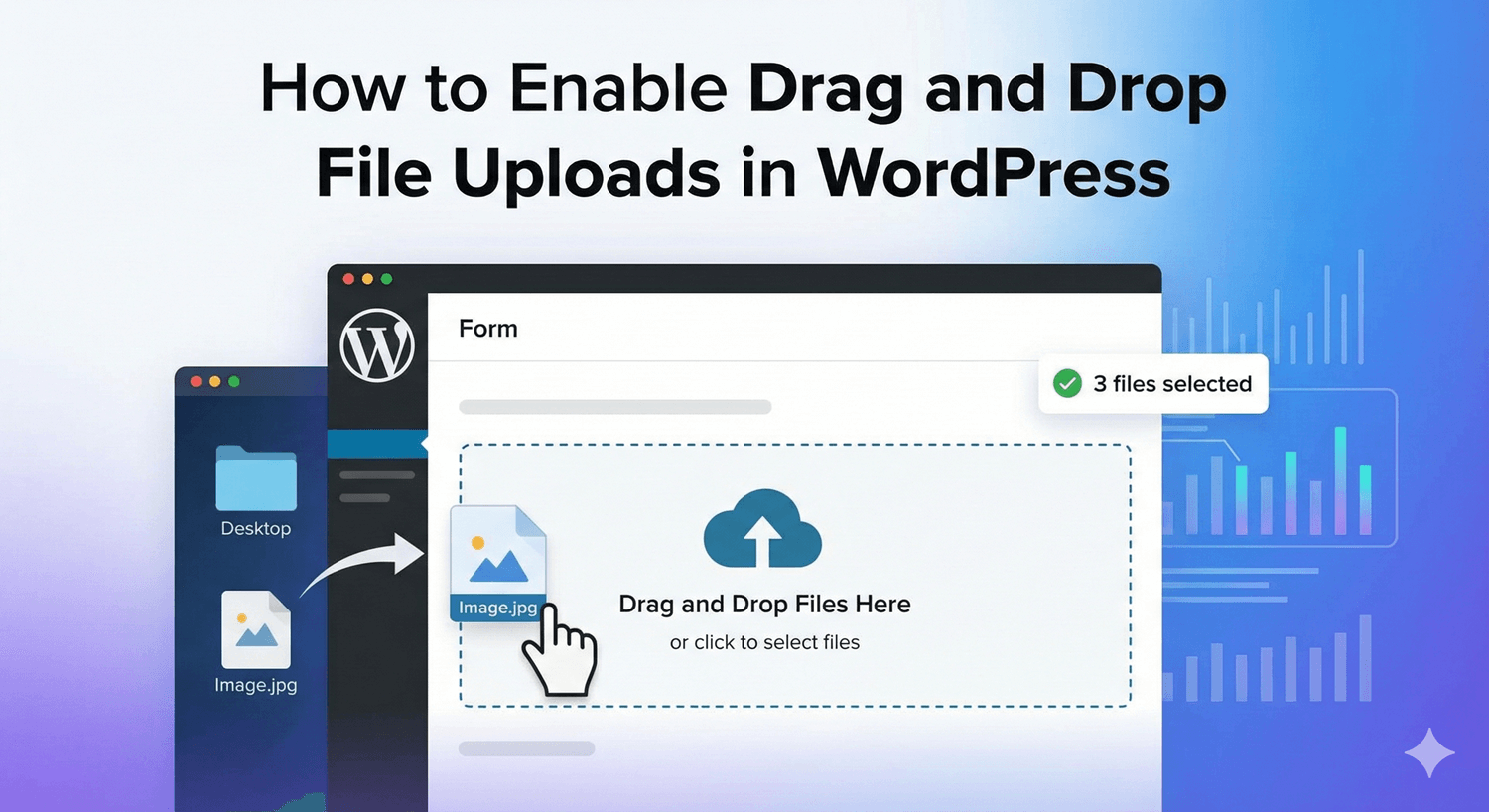
How to Enable Drag and Drop File Uploads in WordPress
Uploading a file the old way is a small chore: click the button, wait for the dialog, navigate to the folder, find the file, select it. Drag-and-drop skips all of that — people just drag a file from their desktop straight onto the form and let go. It’s a small refinement, but on any form that collects files it makes the experience feel modern and effortless. Auto Form Builder’s File Upload field supports it. Here’s how to turn it on.
Why drag-and-drop matters
Every bit of friction in an upload costs you completions, and the classic file dialog is more friction than people realize — especially for someone uploading several files or working on a laptop with files already on screen. Letting people drag files directly onto the form removes those steps. It’s faster, it feels familiar (it’s how people move files everywhere else), and it signals that your form is well-built.
Enable drag-and-drop
Add a File Upload field, open its options, and turn on Enable Drag & Drop — described in the builder as letting users drag files directly onto the form. That’s it. The field now accepts both methods: people can drag files on, or still click to use the file picker if they prefer. You’re adding an option, not taking one away.
Pair it with file previews
Drag-and-drop is even better with previews turned on. Enable Show File Previews and images appear as thumbnails (with icons for other file types), so people can see exactly what they’ve dropped before they submit. When someone’s dragging several files on at once, that visual confirmation prevents mistakes and reassures them the upload worked.
Keep your upload rules in place
Turning on drag-and-drop doesn’t change your controls. You can still:
- Restrict Allowed File Types by category or specific extensions.
- Set a Maximum File Size per file.
- Allow multiple files so people can drop a whole set at once.
- Customize the Upload Button Text for the click-to-upload option.
However people add their files, each one is still checked against your rules.
A better upload, everywhere it matters
Drag-and-drop uploads suit any form where files are central — job applications, support tickets with screenshots, design briefs, document collection. On all of them, dropping files straight onto the form is quicker and more pleasant than the file dialog, and every uploaded file still lands neatly in your submissions dashboard with the rest of the entry.
A small touch, a smoother form
Enabling drag-and-drop is a one-click change that makes your upload fields feel modern and frictionless. Combined with previews, type controls, and multiple-file support, it turns file collection from a chore into something people barely think about — and it’s free, no code required.
Related reading: Accepting multiple file uploads, adding file upload fields, and secure file uploads.
Ready to give your forms modern uploads? Install Auto Form Builder free from WordPress.org.
FAQ
How do I enable drag-and-drop uploads?
On the File Upload field, turn on 'Enable Drag & Drop' so visitors can drag files directly onto the form instead of using the file picker.
Does drag-and-drop work with file previews?
Yes. Enable 'Show File Previews' and dropped images show as thumbnails, so people can confirm what they've attached before submitting.