
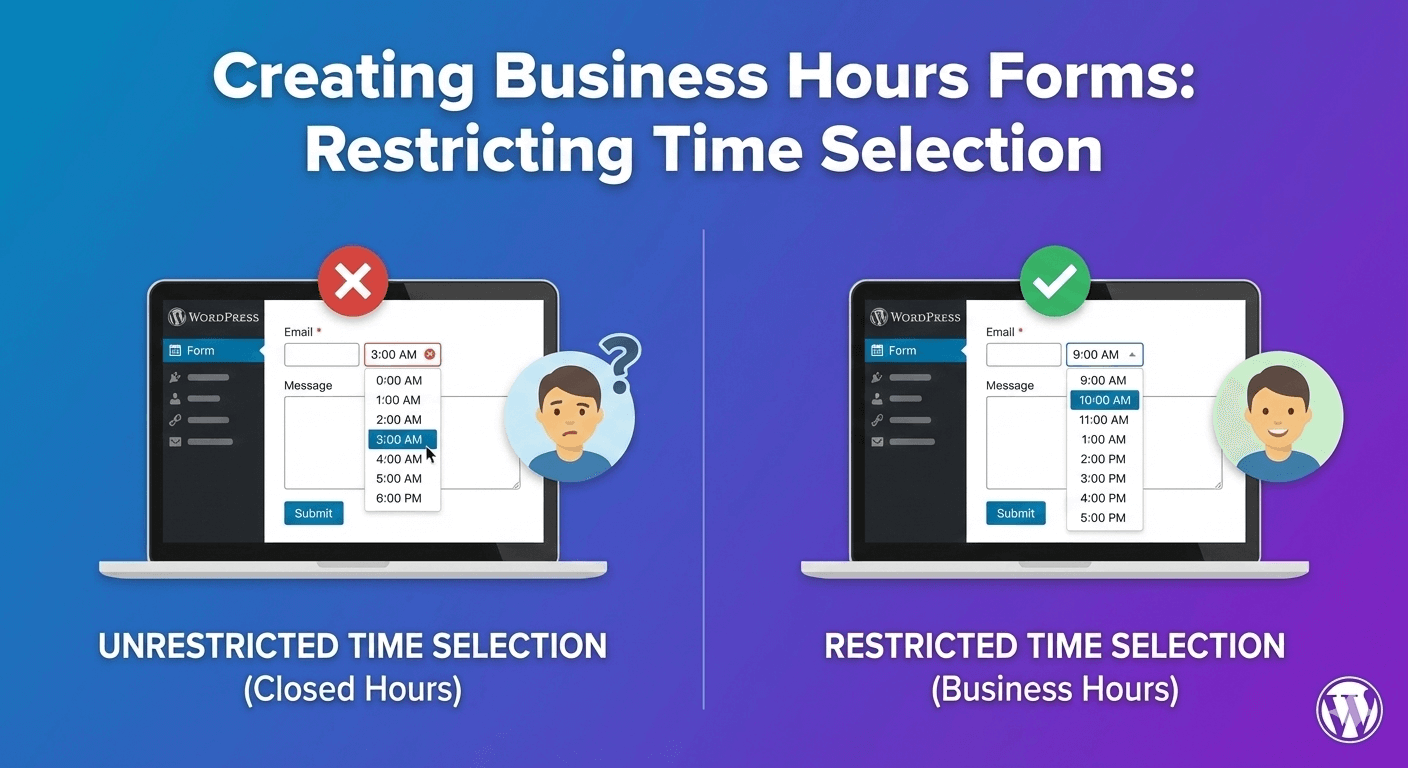
Creating Business Hours Forms: Restricting Time Selection
If your form collects a time — for a booking, an appointment, a callback — an unrestricted time field will happily accept 3am on a Sunday. That’s a request you can’t fulfil and have to chase or decline. The fix is to restrict time selection to the hours you actually operate, so every request that comes in is one you can genuinely serve. Auto Form Builder’s Time field makes this straightforward. Here’s how.
Why restrict time selection
An open time picker treats every minute of every day as bookable, which it isn’t. People will inevitably pick times outside your hours — sometimes by mistake, sometimes because nothing stopped them — and every one of those is friction: a booking you can’t honor, a back-and-forth to reschedule, a poorer experience for the customer. Restricting the field to valid hours removes the whole problem at the source.
Set your earliest and latest time
The Time field lets you define an earliest and latest time, which is exactly what “business hours” means in practice. Set the earliest to when you open and the latest to when you stop taking appointments, and the picker simply won’t offer anything outside that window. Someone trying to book at midnight has no midnight to choose — they can only pick a time you can actually serve.
Offer clean slots with intervals
Beyond the opening and closing bounds, you probably don’t want people picking 2:47pm. Set a time interval — 15 minutes, 30 minutes, an hour — and the picker offers tidy, evenly spaced slots instead of arbitrary minutes. Clean intervals make your schedule manageable and match how you actually book appointments, and the field handles the 12- or 24-hour format your audience expects.
Pair with a date field
Time rarely travels alone. Add a Date field alongside so people choose both a day and a slot. Restrict the date too — to the future, with a minimum number of days’ notice if you need lead time (our guide to future-only date selection covers this). Together, a bounded date and a business-hours time field mean every request is for a valid day and a valid slot.
Handle different hours with conditional logic
If your hours vary — different times for different services, say — you can use conditional logic to shape the form around the choice. Show the relevant options depending on what someone selects, so each person only sees the slots that actually apply to their request.
Every request lands ready to action
Every booking request is stored in your submissions dashboard, where you can filter by date, search, and export. Because the time field only accepted valid slots, the requests you receive are ones you can act on immediately — no impossible times to sort out.
Business-hours forms, done right
- Set the earliest and latest time to your operating hours.
- Use intervals for clean, bookable slots.
- Pair with a restricted date field for full booking control.
- Use conditional logic if your hours vary by service.
Restricting time selection is a small setup that prevents a steady trickle of unusable requests. Set your hours once, and every booking that comes in is one you can actually keep — free, no code required.
Related reading: Creating appointment booking forms with date restrictions and how to add a time picker.
Ready to build a booking form that respects your hours? Install Auto Form Builder free from WordPress.org.
FAQ
Can I limit a time field to my business hours?
Yes. The Time field lets you set an earliest and latest time, so people can only pick a slot within the hours you actually operate.
Can I offer fixed time slots?
Yes. Set a time interval (like 15 or 30 minutes) so the picker offers clean, bookable slots rather than any random minute.