
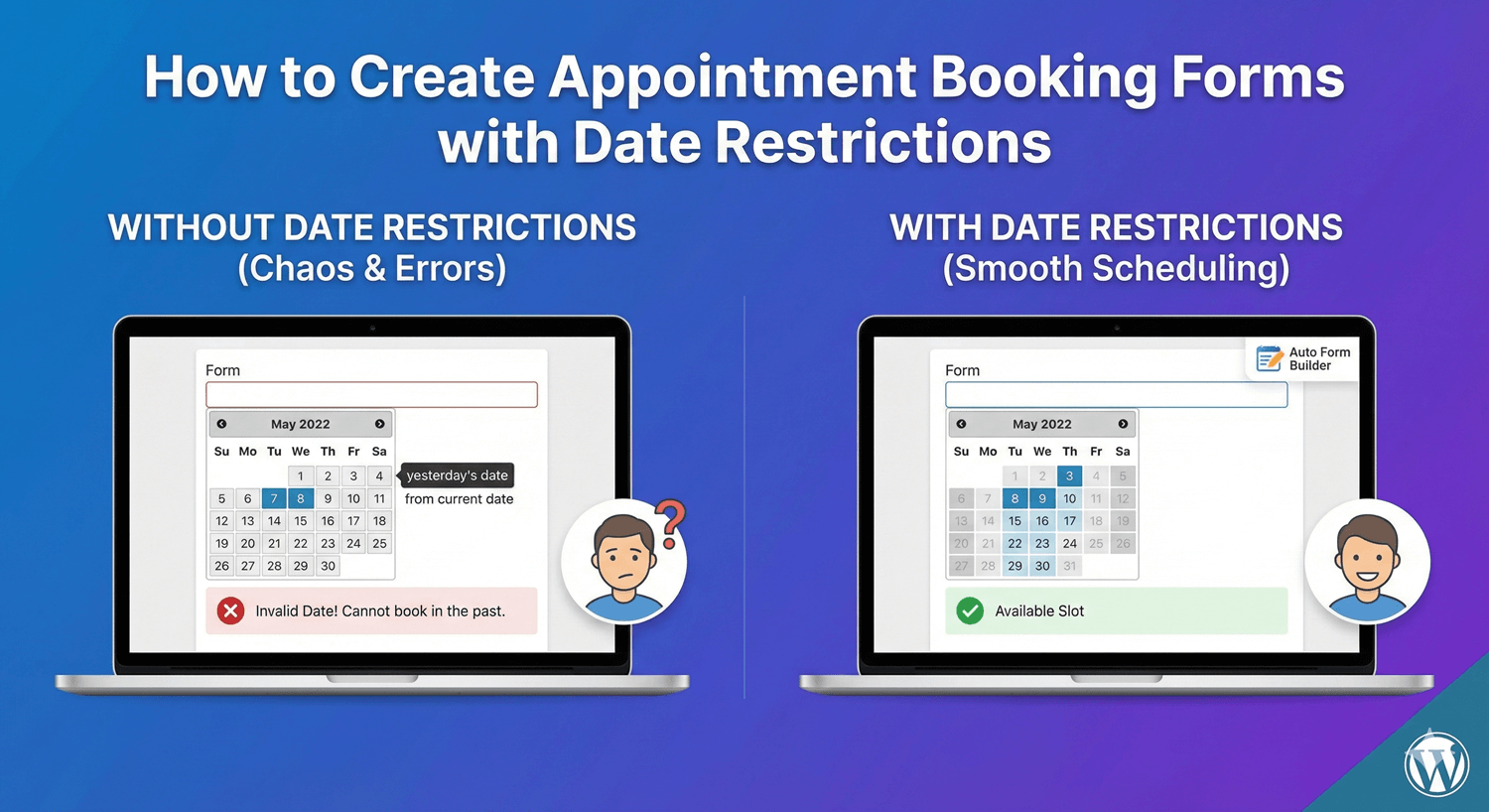
How to Create Appointment Booking Forms with Date Restrictions
A booking form is only as good as the dates it accepts. Let people pick any date and you’ll get requests for yesterday, for tomorrow morning when you need two days’ notice, or for days you’re closed — every one a booking you have to chase or decline. The fix is date restrictions: constrain the date field so people can only request days you can actually honor. Here’s how to build an appointment booking form with smart date rules in Auto Form Builder.
Why date restrictions are the key
Most booking-form frustration comes down to invalid dates. Restricting the Date field so it only offers valid, bookable days removes that whole category of problem at the source. Instead of manually correcting bad requests, you receive only ones you can accommodate — which makes your booking process smoother for you and clearer for the person booking.
Block past dates
The most basic and essential restriction: no dates in the past. Set a first allowed date (today, or your next available day) so the calendar simply won’t offer earlier dates. A booking for a date that’s already gone makes no sense, and this stops it happening. Our guide to future-only date selection covers this rule in detail.
Require a minimum lead time
“Future” often isn’t enough — you usually need notice. If you can’t take a booking for tomorrow because you need time to prepare, use the “minimum days from today” option to require the chosen date to be at least a set number of days ahead (say, two or three). It’s enforced both in the browser and on the server, so people genuinely can’t book without giving you the lead time you need. This one setting prevents a steady stream of impossible last-minute requests.
Add a time within your hours
Most appointments need a time as well as a date. Pair the restricted date with a Time field set to your business hours — an earliest and latest time, plus clean intervals like 30-minute slots. Our guide to business-hours forms walks through this, and combining date and time fields shows how they work together. The result: every request is for a valid day and a valid slot.
Adapt for different services
If different appointment types have different rules — more notice for some, different availability for others — use conditional logic to shape the form around the service someone selects. Each person sees the date and time options that actually apply to what they’re booking.
Confirm and manage bookings
Set a confirmation email so people know their request came through, and an admin notification so you catch every one. Every booking lands in your submissions dashboard, where you can filter by date, search, and export — a clean, organized view of your upcoming requests. For the full build, see our guide to appointment scheduling forms.
Build a booking form that only accepts valid dates
- Block past dates with a first allowed date.
- Require a minimum number of days’ notice.
- Add a time field within your business hours.
- Use conditional logic for different services.
- Confirm requests and manage them from the dashboard.
Date restrictions are what turn a booking form from a source of impossible requests into one that only brings you valid, honorable bookings. It’s all built in, and free.
Ready to build a smarter booking form? Install Auto Form Builder free from WordPress.org.
FAQ
How do I stop people booking dates in the past?
Set a first allowed date on the Date field so earlier dates can't be selected — the calendar only offers valid, upcoming days.
Can I require a minimum amount of notice?
Yes. The 'minimum days from today' option requires the chosen date to be at least a set number of days ahead, so you always get enough lead time.