
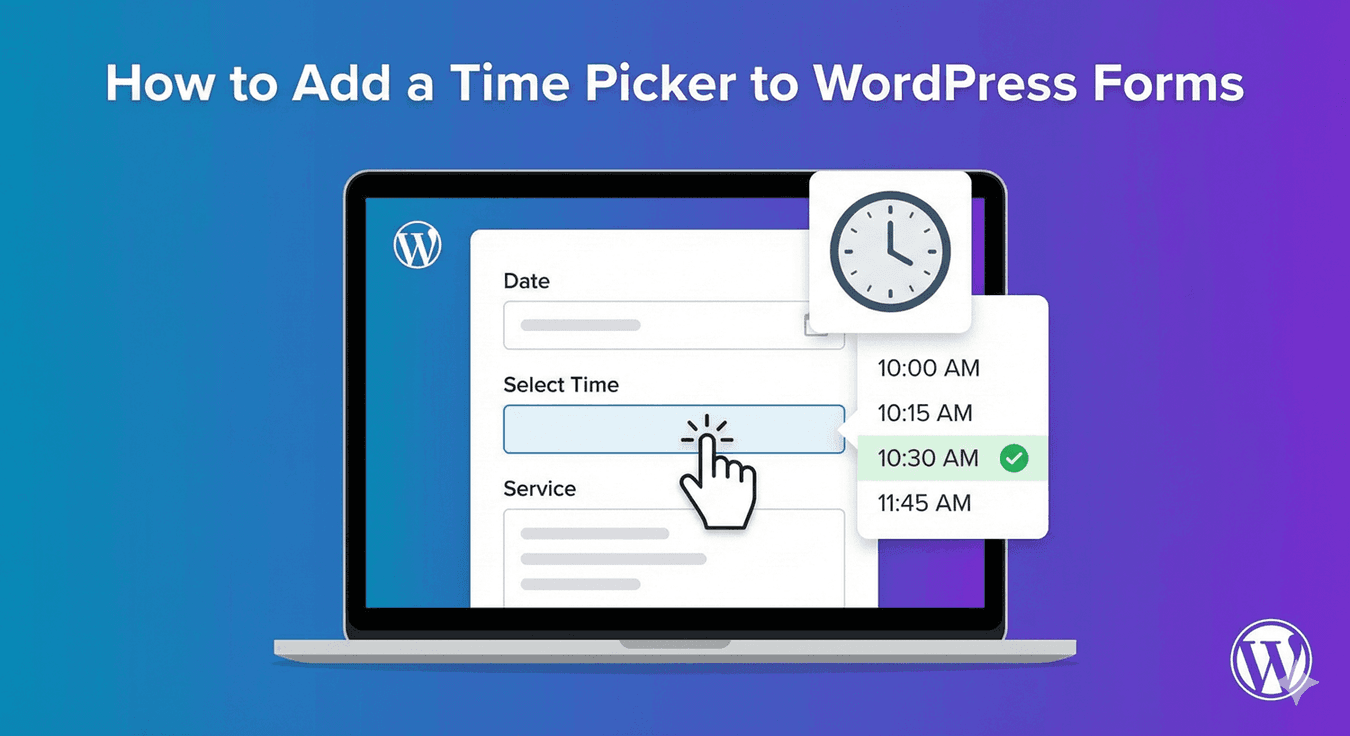
How to Add a Time Picker to WordPress Forms
Any form that collects a time — a booking, an appointment, a callback, a delivery window — is better with a proper time picker than a text box. Typed times come in every format (“2pm,” “14:00,” “2 o’clock”), and some make no sense for your form. A time picker gives people clean, valid slots to choose from. Here’s how to add one with Auto Form Builder’s Time field.
Why use a time picker
Letting people type a time invites inconsistency and error. A picker removes both: people select from a set of times you control, so every answer is valid and consistently formatted. It’s quicker for the person too — a tap instead of typing — and it lets you constrain the options to slots you can actually accommodate. For anything time-related, a picker is simply the right tool.
Add the Time field
Drag the Time field onto your form and label it clearly (“Preferred time,” “Delivery window”). Rather than a plain input, it presents a clean dropdown time picker, so people choose a time from a list. That alone is a big improvement over a text box, but the real value comes from configuring it.
Set clean intervals
You almost never want people picking 2:43pm. Set a time interval — 15, 30, or 60 minutes — and the picker offers evenly spaced, tidy slots instead of arbitrary minutes. Intervals make your bookings manageable and match how you actually schedule: half-hour appointments, hourly slots, whatever fits your operation. Clean slots in, clean schedule out.
Restrict to your hours
A time picker should only offer times you’re available. Set an earliest and latest time to match your operating hours, and the picker won’t show anything outside them — no 3am booking requests. Our guide to business-hours forms covers this in detail; the short version is that bounding the time field to your real hours means every request is one you can serve.
Choose 12 or 24-hour format
Set the field to a 12-hour (2:30 PM) or 24-hour (14:30) format to match your audience’s convention. Using the format people expect reduces confusion and mistakes, and it keeps your stored times consistent and unambiguous.
Pair with a date field
Most forms that need a time also need a day. Add a Date field alongside — restricted to valid future dates — so people choose both. Our guide to combining date and time fields shows how they work together to capture a complete, valid slot for bookings and appointments.
React to the chosen time
Like any field, the time can drive conditional logic — showing different options based on the slot someone picks, for instance. And every time selection is stored with the submission in your submissions dashboard, ready to review, filter, and export.
Add a time picker in a few steps
- Drag in the Time field and label it clearly.
- Set clean intervals for tidy slots.
- Restrict to your business hours.
- Choose 12- or 24-hour format.
- Pair with a date field for full scheduling.
A time picker turns “sometime that afternoon” into a specific, valid slot — better for you and easier for the person booking. It’s built into the free Time field, no code required.
Ready to collect clean times? Install Auto Form Builder free from WordPress.org.
FAQ
How do I add a time picker to my form?
Add the Time field. It provides a dropdown time picker, so people select a time rather than typing it, with intervals and a 12- or 24-hour format you choose.
Can I offer only certain time slots?
Yes. Set a time interval (like 30 minutes) and an earliest and latest time, so people pick from clean slots within your hours.