
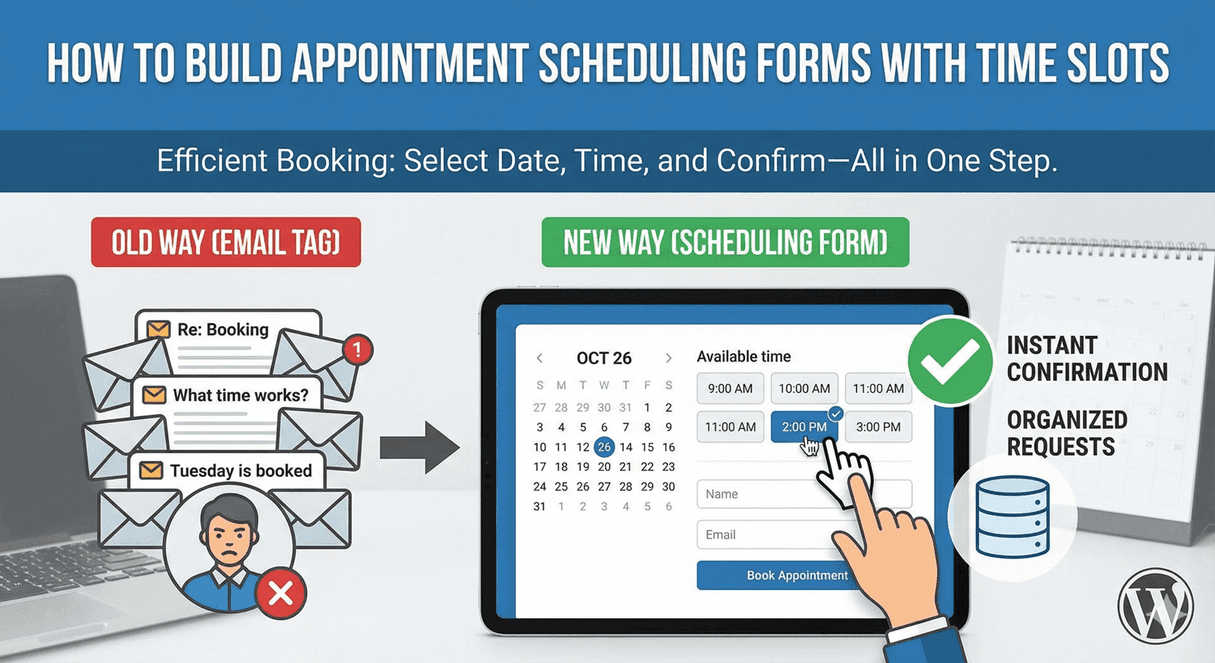
How to Build Appointment Scheduling Forms with Time Slots
Booking an appointment over email is a slow dance — “how about Tuesday?”, “no, Wednesday”, “what time?” — that wastes everyone’s time. A scheduling form cuts it out: people pick a valid date and time slot themselves, and you get a clean request you can confirm. Auto Form Builder lets you build one with the right date and time controls. Here’s how.
Collect the essentials
Start a new form and add the core fields: a Name field, an email and phone for contact, and a field for the reason or service if you offer more than one. Keep it lean — the point is a quick request, not a long form. Then add the two fields that make it a scheduling form: a date and a time.
Add a date picker with sensible limits
Add a Date field so people choose a day from a calendar rather than typing one. Restrict it to valid days: set a first allowed date so past dates can’t be picked, and require a minimum number of days’ notice if you need lead time before an appointment. Our guide to future-only date selection covers this in detail. The result is that people can only request days you can actually accommodate.
Offer clean time slots
The Time field is what turns “sometime Wednesday” into “Wednesday at 2:30.” Set a time interval — 15, 30, or 60 minutes — so the picker offers tidy, bookable slots rather than any random minute, and set an earliest and latest time to match your working hours. Our guide to restricting time to business hours walks through this. Now people pick from real, valid slots within the times you actually operate.
Adapt the form with conditional logic
If different services need different durations or options, use conditional logic to shape the form around the choice — showing the relevant time options or follow-up fields based on the service someone selects. Each person sees a scheduling flow tailored to what they’re booking.
From request to real booking
Here’s the honest distinction: the form collects an appointment request and notifies you the moment it comes in, so you can confirm it. If you want the form to actually book the appointment automatically, the optional AI Conversation feature adds appointment booking via Auto Form CRM. So you can start with a simple request-and-confirm flow for free, and add automated booking later if you need it.
Confirm and manage appointments
Set up a confirmation email so people know their request came through, and an admin notification so you never miss one. Every request lands in your submissions dashboard, where you can filter by date, search, and export — a running, organized list of who wants what, and when.
Build a scheduling form, step by step
- Collect name and contact details, plus the service if relevant.
- Add a date picker restricted to valid, future days.
- Add a time field with clean slots within your business hours.
- Use conditional logic if services differ.
- Send confirmations, and manage requests from the dashboard.
- Add optional AI booking when you want full automation.
A good scheduling form replaces a dozen back-and-forth emails with a single clean request — better for you and for the person booking. And the core is completely free.
Related reading: Creating appointment booking forms with date restrictions.
Ready to let people schedule with you? Install Auto Form Builder free from WordPress.org.
FAQ
Can I offer specific time slots on a scheduling form?
Yes. Set a time interval (like 30 minutes) and an earliest/latest time on the Time field, so people choose from clean slots within your hours.
Can the form actually book the appointment?
The form collects the appointment request and notifies you. The optional AI Conversation feature adds appointment booking via Auto Form CRM if you want automated scheduling.