
How to View Form Submissions in WordPress
A common question from anyone new to form plugins is simply: where do the submissions go? With some setups, the answer is “into your email, and nowhere else” — which means digging through your inbox to find anything. Auto Form Builder is different: every submission is stored on your own site and viewable in a proper dashboard. Here’s how to view your form submissions and everything in them.
Every submission is saved for you to view
The foundation is this: when someone submits a form, the entry is stored in your submissions dashboard automatically, on your own WordPress site. You don’t have to configure anything for this — it happens by default. That means there’s always a place to view your submissions, independent of email. Even if a notification email is delayed or lost, the submission itself is right there in the dashboard, waiting.
Open the submissions dashboard
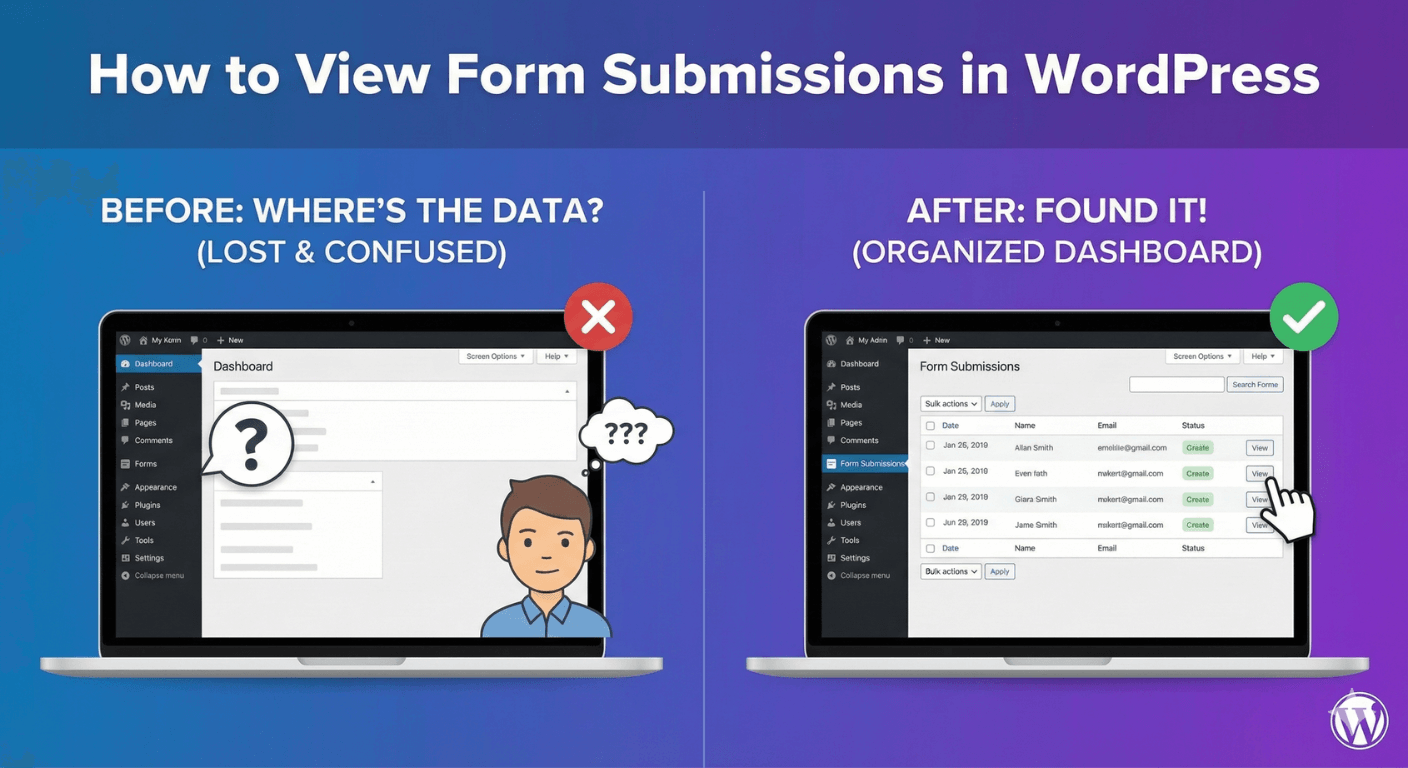
To view your entries, open the submissions area in your Auto Form Builder admin menu. You’ll see a list of all your submissions, organized into tabs — Unread, Starred, Read, Spam, and Trash — with new entries appearing as unread. The list gives you a quick overview: which form each came from, when it was submitted, and a preview of the data, so you can scan your entries at a glance.
View a submission’s full details
To see everything in a particular entry, open it. The full submission details show every field the person completed, laid out clearly — including things like uploaded files (shown with the entry) and survey answers (formatted readably rather than as raw data). Whatever the form collected, you see it all in one place, tied to that specific submission. It’s the complete record of what someone sent you.
Find the submission you want
As your entries grow, you’ll want to jump to specific ones rather than scroll. The dashboard lets you search by any field value — a name, an email, a reference — and filter by form or date range. Our guide to searching submissions covers this; the point is that viewing a specific submission is always just a search or filter away.
Act on what you view
Viewing is usually the start of doing something. From an entry you can mark it read or starred, move it to spam or trash, and print it. Across many entries, you can apply bulk actions or export to CSV or JSON. Viewing your submissions in the dashboard puts you one step from handling them, which is exactly why a dashboard beats an inbox.
Why the dashboard beats email
- Every submission is stored and viewable, even if email fails.
- You see full details, uploads, and formatted answers in one place.
- You can search, filter, and sort to find any entry.
- Viewing leads straight into acting — read, star, tag, export.
Knowing where your submissions are and how to view them turns a form from something you hope worked into a reliable record you can always check. For the full picture of handling entries, see our complete guide to managing submissions. It’s all built in, and free.
Ready to see every submission in one place? Install Auto Form Builder free from WordPress.org.
FAQ
Where can I view my form submissions?
In the Auto Form Builder submissions dashboard on your own WordPress site. Every entry is listed there, and you can open any one to see its full details.
Do I need to check email to see submissions?
No. Every submission is stored in the dashboard regardless of email, so you can view all your entries in one place even if a notification email never arrives.