
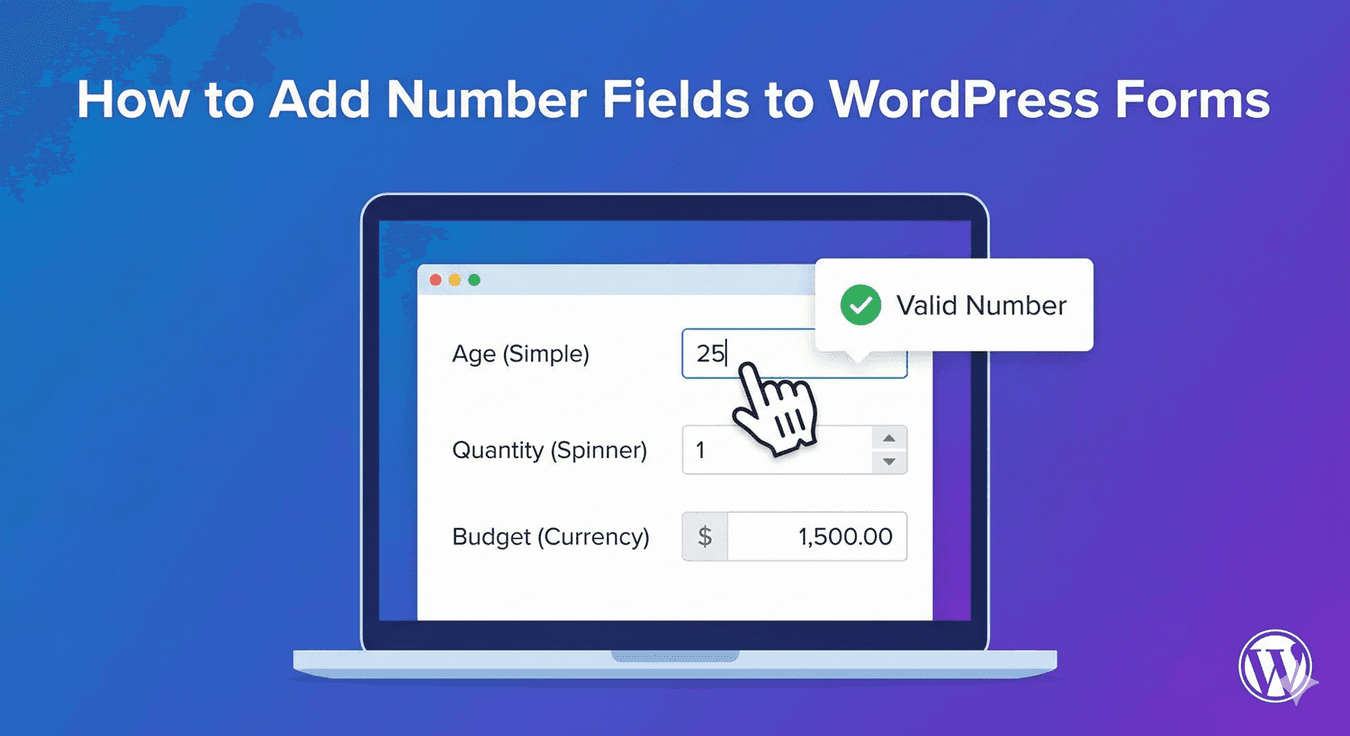
How to Add Number Fields to WordPress Forms
The number field looks like the simplest thing on a form — a box that accepts digits. But Auto Form Builder’s Number field is quietly one of the most versatile fields you have: it can enforce ranges, step in custom increments, display as currency or a percentage, and even become a slider. Whether you’re collecting a quantity, a budget, a rating, or an age, it’s the right tool. Here’s how to add one and use its options well.
Add the Number field
Drag the Number field onto your form and label it clearly. Its defining trait is that it accepts numeric input only — no letters or stray characters can slip in — which keeps numeric data clean from the start. That alone makes it the right choice over a text box any time you’re collecting a number.
Set minimum and maximum values
The most useful settings are the range limits. Set a Lowest Allowed Value and a Highest Allowed Value to bound the field to sensible numbers — a quantity of 1 to 100, an age of 18 to 120, a rating of 1 to 10. Limits stop impossible entries and prompt people to correct anything out of range, so you always get realistic values. Our guide to quantity fields covers this for counts.
Control increments with step size
The Step Size setting controls how the number moves — whole numbers with a step of 1, or finer control with 0.5 or 0.01. Step size matters especially when the field is a slider (it sets the drag increments) or when you’re collecting money (0.01 for cents and pence). Match the step to the precision you need.
Choose how the number displays
This is where the Number field really flexes. The How to Display setting lets the same field present as:
- Plain Number — the default, for counts and general numbers.
- Money (with currency symbol) — for prices, budgets, and amounts, as in our currency field guide.
- Percentage — for proportions and allocations, covered in our percentage input guide.
- Decimal (fixed places) — for values needing a set number of decimals.
One field, four ways to present a number — so you rarely need anything else for numeric input.
Show it as a slider
For questions where dragging beats typing — a budget, an approximate rating — enable Show as Slider and the field becomes a draggable handle between your min and max. Our guide to range sliders covers this. Sliders are intuitive and especially nice on mobile.
Add a starting value and guidance
Set a Starting Value to pre-fill a sensible default when the form loads, and use placeholder or help text to guide people on the expected range. Small touches like these make the field quicker and clearer to complete.
React to the number
Like any field, the Number field works with conditional logic — the value someone enters can reveal follow-up fields, show options above a threshold, or route the form. The number becomes something the form responds to.
Add a number field the right way
- Drag in the Number field and label it clearly.
- Set minimum and maximum values to bound the range.
- Use step size for the right increments.
- Choose the display: plain, money, percentage, or decimal.
- Show as a slider where dragging suits the question.
- Use conditional logic to react to the value.
The Number field is a small field with a surprising range — master its options and it handles quantities, money, percentages, ratings, and more, all cleanly. And it’s free, no code required.
Ready to collect numbers the smart way? Install Auto Form Builder free from WordPress.org.
FAQ
How do I add a number field to my form?
Drag the Number field onto your form. It accepts numeric input only, and you can set minimum and maximum values, a step size, and how the number displays.
Can a number field show as currency or a slider?
Yes. The Number field can display as plain number, money, percentage, or a fixed-decimal, and it can be shown as a draggable slider.