
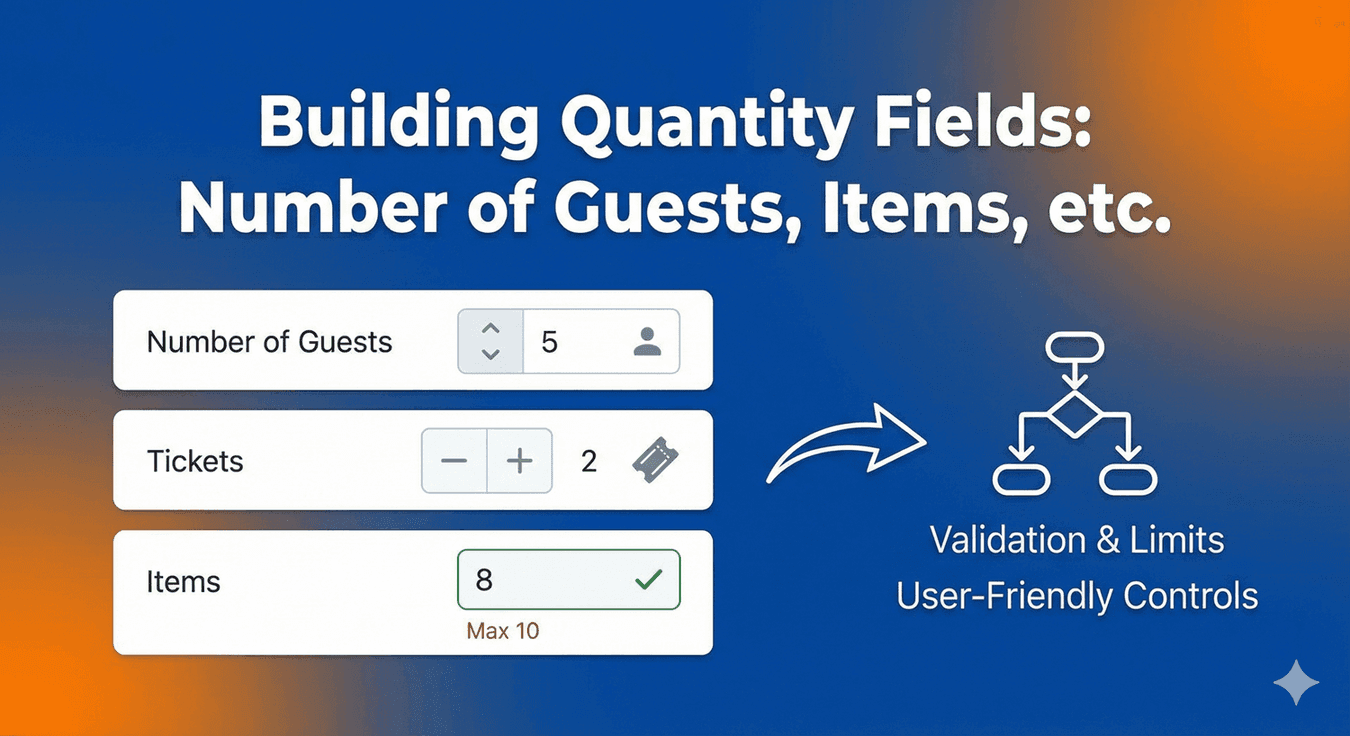
Building Quantity Fields: Number of Guests, Items, etc.
Plenty of forms need a number: how many guests, how many tickets, how many items, how many attendees. It sounds trivial, but a quantity field done carelessly invites nonsense — bookings for zero people, orders for a thousand units, or a stray word where a number should be. Auto Form Builder’s Number field collects quantities cleanly and keeps them within sensible bounds. Here’s how to build one.
Use the Number field for quantities
The first rule is to use the right field. A quantity is a number, so use the Number field, which accepts numeric input only — no letters or stray characters can slip in. That alone prevents a lot of messy data compared to using a plain text box for a quantity.
Set minimum and maximum limits
This is what turns a number box into a proper quantity field. Set a minimum and maximum value to bound the range to what actually makes sense:
- A guest count for a table might be 1 to 12.
- Tickets per order might be 1 to 10.
- Items in a request might be 1 to 100.
With limits in place, someone can’t book for zero guests or order an impossible amount. If they try, validation flags it and the form won’t submit until the number is within range. You get realistic quantities every time.
Label it clearly
A quantity field should leave no doubt about what’s being counted. “Number of guests,” “How many tickets?”, “Quantity” — a specific label prevents confusion, especially when a form has more than one number on it. Pair it with a placeholder or help text if the expected range isn’t obvious.
React to the quantity with conditional logic
Quantities often should change what else the form asks. With conditional logic, the number someone enters can drive the rest of the form — for example, showing additional guest-detail fields when the party size is above a certain number, or revealing a “bulk order” note when the quantity is high. The quantity becomes not just data you collect, but something the form responds to.
Common quantity fields
- Event and restaurant bookings — number of guests or attendees.
- Ticket sales and registrations — number of tickets.
- Order and request forms — number of items or units.
- Surveys and applications — any counted value with a sensible range.
Clean numbers, sensible bounds
A well-built quantity field is a small thing that prevents a whole category of bad data. Use the Number field so only numbers get through, set minimum and maximum limits so quantities stay realistic, label it clearly, and let conditional logic react to the value. Do that and every quantity you collect is usable straight away — and it’s free, no code required.
Related reading: How to add number fields to WordPress forms.
Ready to collect quantities the right way? Install Auto Form Builder free from WordPress.org.
FAQ
How do I collect a quantity like number of guests?
Use the Number field, which accepts numeric input only, and set a minimum and maximum so the quantity stays within a sensible range.
Can I stop people entering impossible quantities?
Yes. Setting a minimum and maximum value limits the range, so you won't get a booking for zero or an order for an unrealistic amount.