
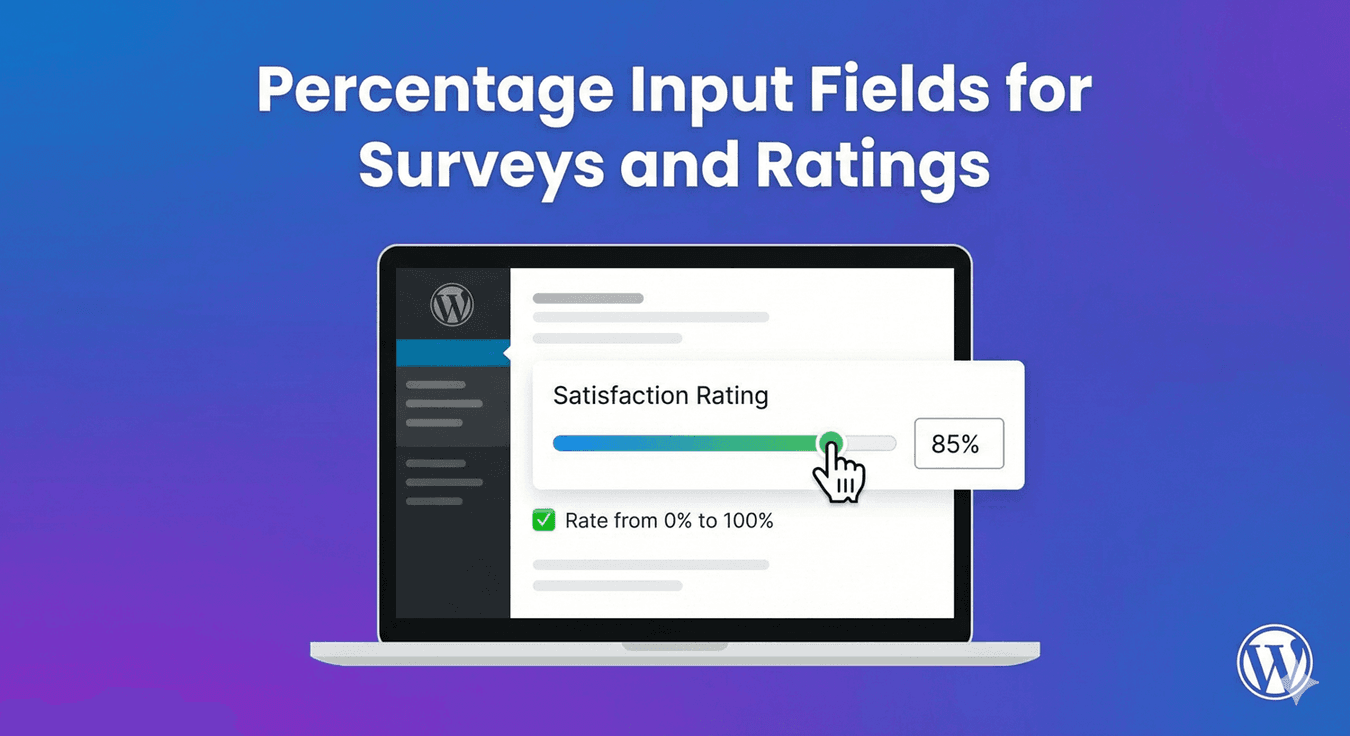
Percentage Input Fields for Surveys and Ratings
Some answers are naturally percentages — how you’d allocate a budget across options, how confident you are in something, what proportion of your time goes where. Collecting these as a percentage, clearly labeled and bounded, makes the input intuitive and the data easy to interpret. Auto Form Builder handles it through the Number field’s display options. Here’s how to create a percentage input.
When a percentage input fits
Percentages suit questions about proportion, allocation, and degree. “What percentage of your budget goes to marketing?” “How confident are you, as a percentage?” “What share of your work is remote?” Framing these as a percentage — rather than a raw number or a vague scale — gives you answers that are immediately comparable and meaningful. It signals clearly to the person that you want a value out of 100.
Display a number as a percentage
Start with a Number field, since a percentage is a number. Open its options and find the How to Display setting — alongside Plain Number, Money, and Decimal, there’s a Percentage (%) option. Choose it and the field presents the value as a percentage, with the formatting that makes clear you’re asking for a proportion. That one setting turns a plain number box into a purpose-built percentage input.
Bound it to a valid range
A percentage almost always lives between 0 and 100, so set the field’s limits accordingly: a Lowest Allowed Value of 0 and a Highest Allowed Value of 100. This keeps entries valid — nobody can submit 150% or a negative percentage — and the field prompts people to correct anything outside the range. For allocation questions where the total should add up, clear per-field bounds help people enter sensible values.
Consider a slider for percentages
For some percentage questions, a slider is even more intuitive than typing. Because it’s a Number field, you can enable Show as Slider (covered in our guide to range sliders) and let people drag to a percentage between 0 and 100. Dragging to “about 70%” feels natural for confidence or allocation questions, and it’s especially nice on mobile. Choose typing for precise figures, a slider for approximate ones.
Percentages vs survey scales
A percentage input is one way to measure degree, but it’s not always the best. For structured feedback and surveys, dedicated scale fields are often clearer: an Opinion Scale with labeled ends, or an NPS question, presents a fixed scale that’s quick to answer and produces charted results automatically. Use a percentage when you genuinely need a value out of 100; use a survey scale when you want a familiar, analyzable rating — our guide to survey forms covers those.
React to the value
Because it’s a number underneath, a percentage input works with conditional logic — showing a follow-up when a confidence percentage is low, or revealing options above a certain allocation. The value becomes something the form can respond to.
Create a percentage input
- Add a Number field and set How to Display to Percentage.
- Bound it 0 to 100 with min and max values.
- Consider a slider for approximate percentages.
- Use survey scale fields instead where they fit better.
Displaying a number as a percentage is a small setting that makes proportion and allocation questions clear and their answers easy to use. It’s free, no code, on the Number field.
Ready to collect percentages cleanly? Install Auto Form Builder free from WordPress.org.
FAQ
How do I collect a percentage in a form?
Add a Number field and set 'How to Display' to Percentage. The value is presented as a percentage, with min and max limits to keep it in a sensible range.
Can I limit a percentage to 0–100?
Yes. Set the lowest allowed value to 0 and the highest to 100, so entries stay within a valid percentage range.