
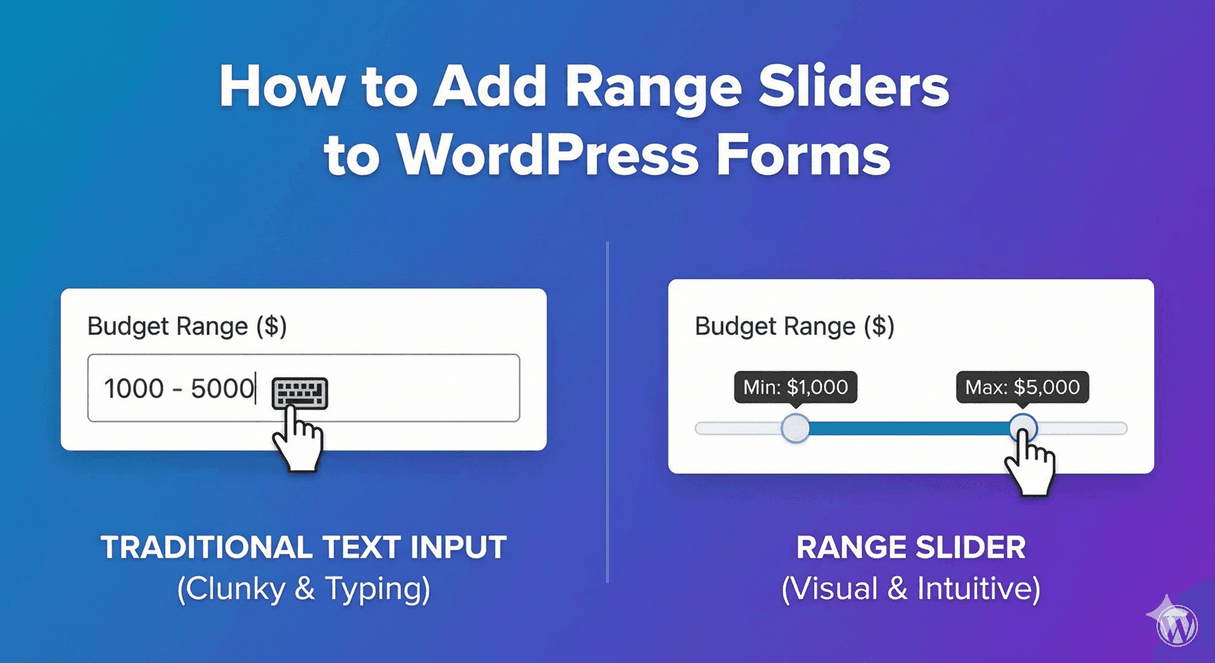
How to Add Range Sliders to WordPress Forms
Sometimes typing a number is the slow way to answer. Picking a budget, choosing a quantity, setting a rating on a scale — these are often quicker and more intuitive as a slider you drag than a box you type into. Auto Form Builder lets you turn the Number field into a range slider with a single setting. Here’s how, and when a slider is the right choice.
When a slider beats a number box
A slider shines when the exact number matters less than roughly where it falls on a range. “What’s your budget?” from a slider between two values feels effortless; “how likely are you, 1 to 10?” is a natural drag. Sliders are visual, fast, and especially nice on mobile where dragging beats typing. When you need a precise figure — an amount, a reference — a plain number box is better. Match the input to the question.
Turn a number field into a slider
Add a Number field to your form and open its options. Under the display settings, enable Show as Slider — described in the builder as letting users select a number by sliding a handle. The field now presents as a draggable slider instead of a text box, while still collecting a number behind the scenes. That’s the core change.
Set the range
A slider needs bounds, and the Number field gives you them:
- Set the Lowest Allowed Value — the smallest number, where the slider starts.
- Set the Highest Allowed Value — the largest number, where it ends.
These define the span people can drag across. A budget slider might run 0 to 10,000; a satisfaction slider might run 1 to 10. Bounding the range keeps answers sensible and the slider meaningful.
Control the increments with step size
By default a slider might move in increments of one, but you can change that with the Step Size setting. Use 1 for whole numbers, or a larger step (like 100 or 1,000) for a budget slider so people land on round figures rather than an oddly specific value. Step size controls how granular the slider feels — bigger steps for broad ranges, smaller steps for fine control.
Set a starting value
You can give the slider a Starting Value so it begins pre-positioned when the form loads — often the midpoint or a sensible default. A slider that starts somewhere reasonable is easier for people to adjust from than one pinned at zero, and it subtly suggests a normal range.
React to the slider’s value
Because it’s still a number underneath, a slider works with conditional logic. The value someone slides to can drive the rest of the form — revealing a follow-up when a budget is high, or showing extra options above a certain threshold. The slider becomes something the form responds to, not just a value you store.
Add a slider in a few steps
- Add a Number field and enable Show as Slider.
- Set the lowest and highest allowed values to define the range.
- Set a step size for the right increments.
- Give it a sensible starting value.
- Use conditional logic to react to the chosen number.
A range slider turns picking a number into a quick, satisfying drag — great for budgets, quantities, and scales, and especially good on mobile. It’s a single setting on the free Number field, no code required.
Related reading: How to add number fields to WordPress forms.
Ready to add a slider to your forms? Install Auto Form Builder free from WordPress.org.
FAQ
How do I add a range slider to a form?
Add a Number field and turn on 'Show as Slider'. People then pick a value by dragging a handle, within the minimum and maximum you set.
Can I control the slider's range and increments?
Yes. Set the lowest and highest allowed values to bound the range, and a step size to control the increments the slider moves in.