
How to Create Dropdown Menus in WordPress Forms
The dropdown menu is one of the most useful fields on any form — it lets people choose from a list of options while keeping the form compact and tidy, even when the list is long. From a simple category selector to a searchable list of countries, the dropdown adapts to the job. Here’s how to add and configure one with Auto Form Builder’s Dropdown field.
Add a dropdown field
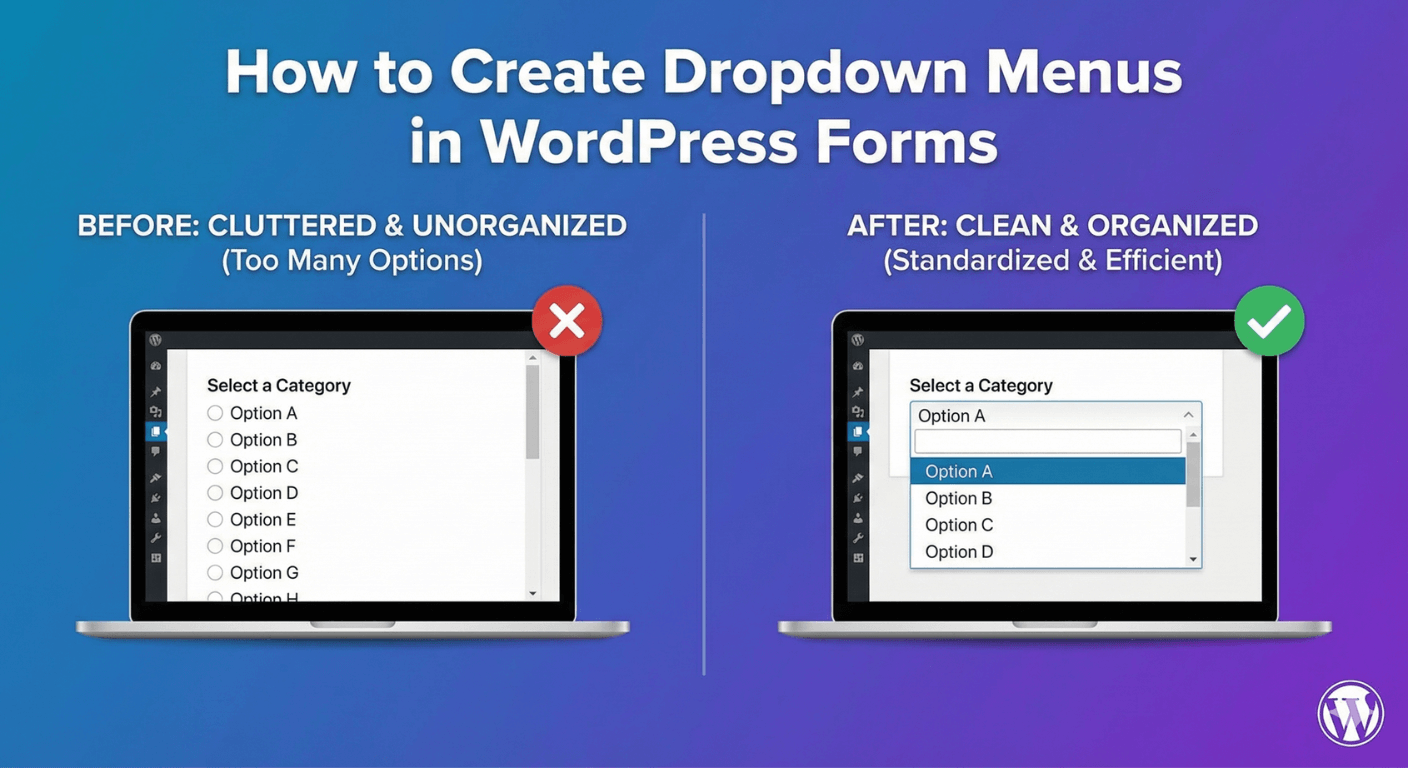
Drag the Dropdown field onto your form and click it to configure. Add your options — each becomes a selectable item in the menu — and give the field a clear label (“Select a category,” “Choose your country”). A dropdown keeps all those options hidden until clicked, so it takes up just one line on the form no matter how many choices there are. That compactness is its main advantage.
Make long lists searchable
A standard dropdown is fine for a moderate list, but once you pass a couple of dozen options, scrolling gets tedious. Enable the searchable option and people can type to filter the list instead — “net” jumps to the Netherlands, “cal” to California. For long lists like countries, states, or products, searchable is essential to keep the field quick to use, especially on mobile. Our guide to searchable dropdowns covers this in depth.
Let people choose more than one
By default a dropdown is single-choice, but you can enable multi-select so people pick several options, shown as removable chips. This is ideal for “select all that apply” questions with a long list, where a wall of checkboxes would be unwieldy. Our guide to multi-select dropdowns walks through when to use it.
Add an icon for clarity
You can place an icon inside the dropdown to signal its purpose at a glance — a small touch that helps people scan a busy form and understand what each field is for.
Dropdown vs radio buttons
Both a dropdown and radio buttons collect a single choice, so which should you use? The rule of thumb: use radio buttons for short lists (up to about six options) where seeing everything at once helps, and a dropdown for longer lists or to save space. Our guide to radio buttons vs dropdown covers the decision in full.
Drive logic from the selection
A dropdown choice can trigger conditional logic, so the option someone selects shapes the rest of the form — revealing related fields, showing a follow-up, or changing what happens next. This works with standard, searchable, and multi-select dropdowns, making even a simple menu a powerful way to steer the form.
Set required rules
If a choice is mandatory, mark the field required and the form won’t submit until an option is selected. For single-select, consider whether you need a neutral default (“Please choose…”) so people make an active choice rather than accidentally submitting the first option.
Add a dropdown menu the right way
- Drag in the Dropdown field and add your options.
- Enable searchable for long lists.
- Enable multi-select where people need to choose several.
- Choose radio buttons instead for short lists.
- Use the selection to drive conditional logic.
The dropdown menu is a compact, flexible field that handles everything from a short category picker to a searchable list of hundreds — all while keeping your form tidy. And it’s free, no code required.
Ready to add dropdowns to your forms? Install Auto Form Builder free from WordPress.org.
FAQ
How do I add a dropdown menu to a form?
Drag the Dropdown field onto your form and add your options. Enable searchable for long lists, or multi-select to let people choose more than one.
When should I use a dropdown instead of radio buttons?
Use a dropdown for longer option lists or to save space. Use radio buttons for short lists where showing every option at once helps people choose.