
Multi-Select Dropdowns: Choose Multiple Options
Some questions need more than one answer from a long list — the services a client wants, the countries they ship to, the topics they’re interested in. A checkbox group works for short lists, but once you have twenty or more options, all those boxes take over the form. A multi-select dropdown solves this: people pick several options from a compact, tidy control. Here’s how to use it in Auto Form Builder’s Dropdown field.
What a multi-select dropdown does
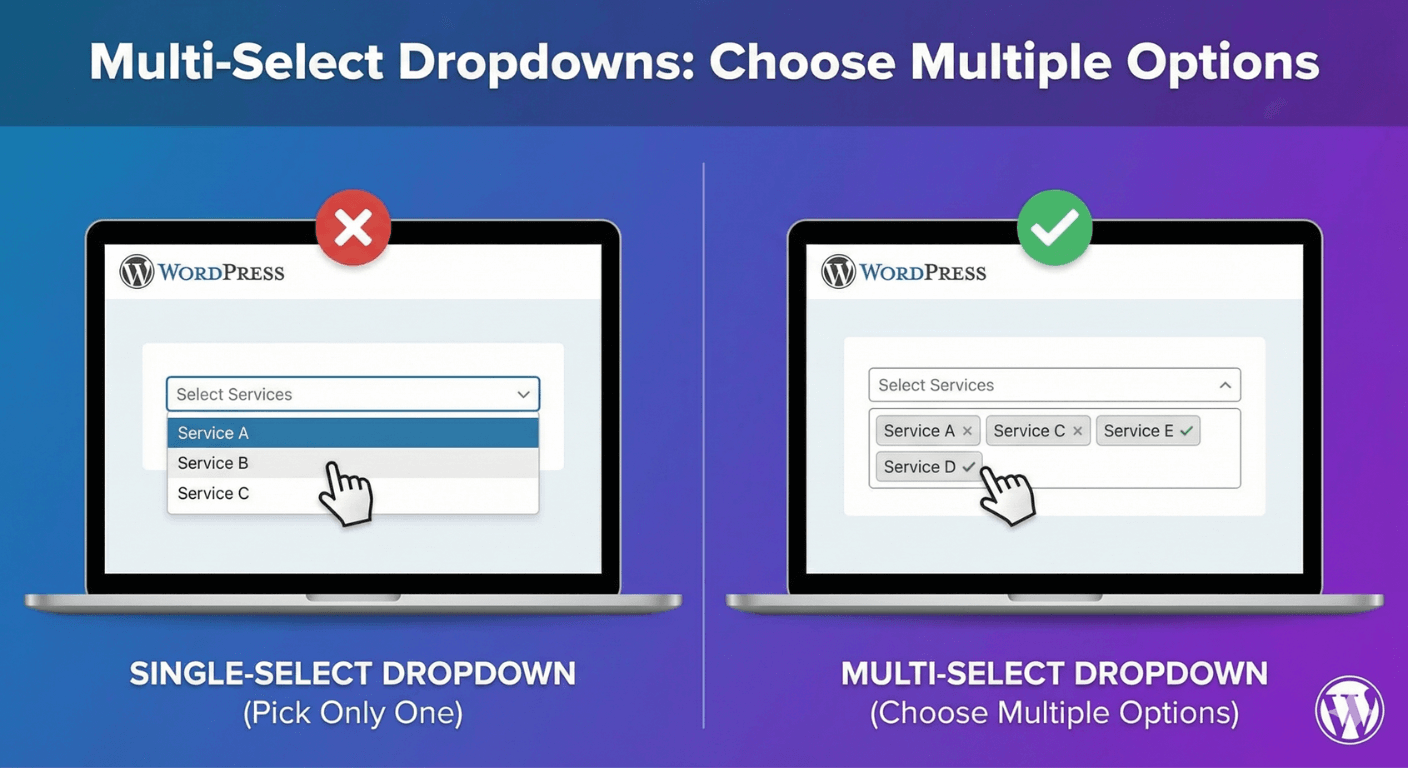
A standard dropdown lets people pick one option. Enable multi-select and they can choose several from the same list. The selected options appear as removable chips, so it’s always clear what’s been picked and easy to remove any of them. The list itself stays collapsed until needed, which keeps the form compact no matter how many options there are — a big advantage over a long checkbox group.
Enable multi-select
Add a Dropdown field and turn on the multi-select option. That’s the core change — the field now accepts multiple selections, displaying each as a chip. Label it clearly so people understand they can pick more than one (“Select all that apply” is a helpful cue), since a dropdown doesn’t visually signal multi-select the way a checkbox group does.
Add search for long lists
The real power of a multi-select dropdown shows with long lists. Enable the searchable option and people can type to filter, jumping straight to the options they want instead of scrolling. For a list of countries, services, or products, this is transformative — someone can select five items from a list of two hundred in seconds. Our guide to searchable dropdowns covers this in more depth.
Multi-select dropdown vs checkbox group
Both let people choose multiple options, so which to use?
- Use a checkbox group for shorter lists where seeing every option at once helps people decide.
- Use a multi-select dropdown for long lists, or when you want to keep the form compact and tidy.
The deciding factor is list length and space. A handful of visible options suits checkboxes; a long list suits a searchable multi-select dropdown.
Set required rules sensibly
If a multi-select dropdown is required, it means at least one option must be chosen before submission. Decide whether that fits — sometimes “none” is a valid answer and the field should be optional. Match the requirement to whether an answer is genuinely mandatory.
React to the selections
Multi-select dropdowns work with conditional logic, so the options someone picks can shape the rest of the form. Reveal a follow-up when a particular option is selected, or show additional fields based on the choices. The selection becomes something the form responds to, not just data you store.
Use a multi-select dropdown when
- People need to choose several options from a long list.
- A checkbox group would create too many visible boxes.
- You want to keep the form compact and clean.
- Search would help people find their options quickly.
A multi-select dropdown gives people the freedom to pick everything that applies while keeping your form tidy — the best of both worlds for long, multi-answer questions. And it’s free, no code required.
Related reading: How to create dropdown menus in WordPress forms.
Ready to build cleaner multi-select forms? Install Auto Form Builder free from WordPress.org.
FAQ
How do I let people select multiple options from a dropdown?
Enable multi-select on the Dropdown field. People can then choose several options, which appear as removable chips they can add to or clear.
When should I use a multi-select dropdown instead of checkboxes?
Use a multi-select dropdown for long option lists where a wall of checkboxes would be unwieldy, or when you want to keep the form compact.