
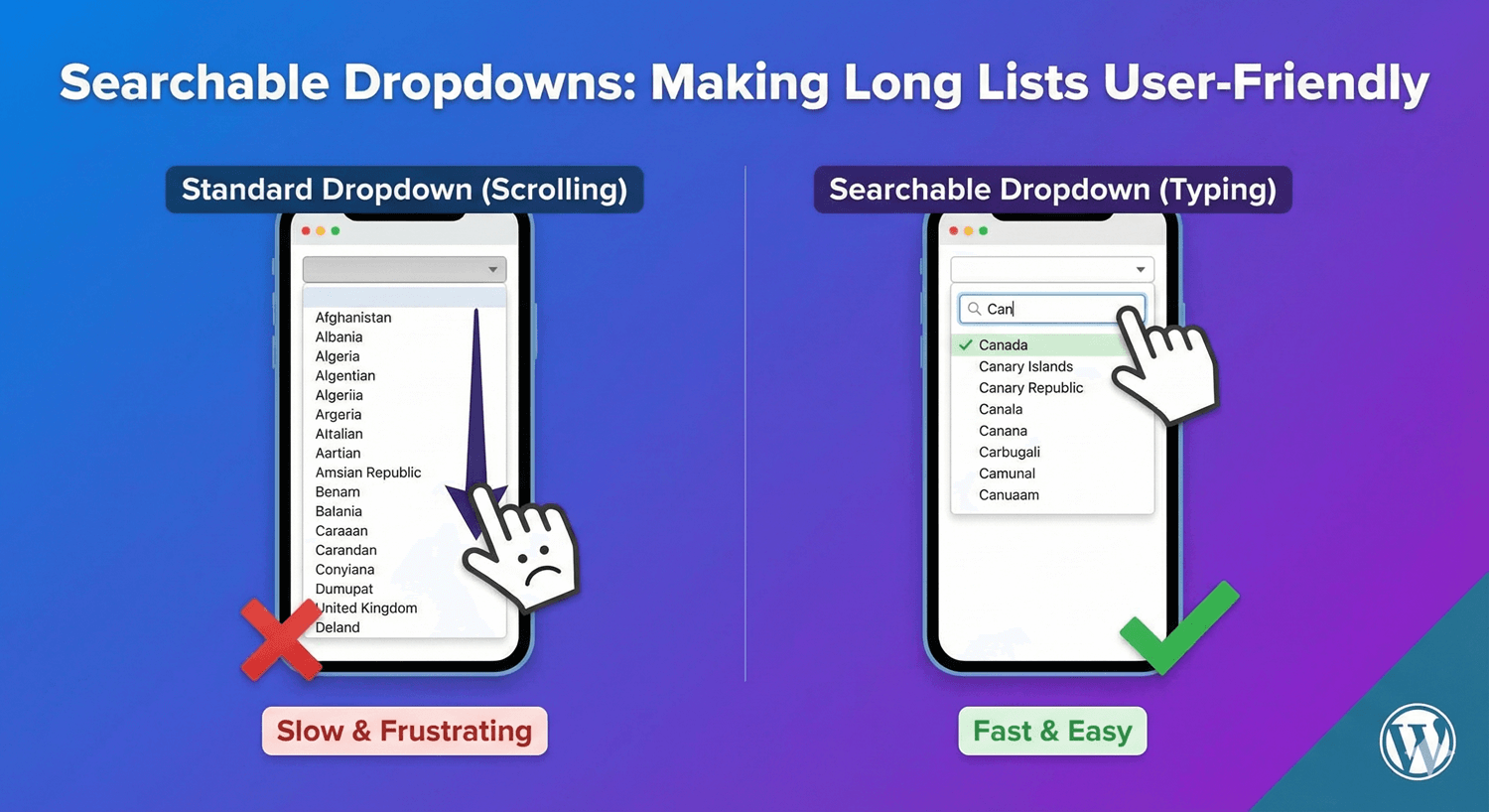
Searchable Dropdowns: Making Long Lists User-Friendly
A dropdown with ten options is convenient. A dropdown with two hundred is a chore — endless scrolling, easy to overshoot the option you want, and painful on a phone. Long lists like countries, states, services, or products are exactly where a plain dropdown falls apart. Auto Form Builder’s Dropdown field fixes this with a searchable option, so people just type to find what they need. Here’s how to use it well.
The problem with long dropdowns
Scrolling is fine for a handful of choices, but it doesn’t scale. Once a list passes a couple of dozen items, finding the right option becomes work — and on mobile, where the native picker can be clumsy, it’s worse. Every second of friction costs you completions. The goal is to let people get to their choice instantly, no matter how long the list.
Make the dropdown searchable
Enable the searchable option on the Dropdown field and everything changes. Instead of scrolling, the visitor starts typing and the list filters in real time to matching options. Looking for “Netherlands” in a country list? Type “net” and it’s right there. This one setting turns an unwieldy 200-item list into something people can use in a second or two.
Searchable dropdowns are the right default for any genuinely long list: countries, regions, product catalogs, service menus, or anything else where scrolling would be tedious.
Let people choose more than one
Sometimes one answer isn’t enough — a visitor wants to pick several services, topics, or products. The Dropdown field supports multi-select, showing each choice as a removable chip so it’s clear what’s been selected and easy to remove any of them. Combined with search, multi-select lets people quickly build a set of choices from even a very long list without the clutter of a giant checkbox group.
Drive logic from the selection
A dropdown choice can trigger conditional logic, so the selected option can shape the rest of the form — reveal a follow-up question, show a relevant field, or change what happens next. That works with both single and searchable dropdowns, so your long list isn’t just easier to use, it can steer the whole experience.
When to use what
- Use a standard dropdown for short lists (up to roughly a dozen options).
- Enable searchable for long lists where scrolling would be tedious.
- Use multi-select when people legitimately need to choose more than one.
- Pair any of these with conditional logic to adapt the form to the choice.
Small setting, big usability win
Making a dropdown searchable is a tiny change with an outsized effect: long lists stop being a barrier and become effortless, especially on mobile. It’s one of those details that separates a form people abandon from one they breeze through — and it’s free, no code required.
Related reading: How to create dropdown menus in WordPress forms.
Ready to tame your long lists? Install Auto Form Builder free from WordPress.org.
FAQ
How do I make a dropdown searchable?
Enable the searchable option on the Dropdown field. Visitors can then type to filter the list instead of scrolling through every option.
Can people select more than one option?
Yes. The Dropdown field supports multi-select with removable chips, so visitors can choose several options from the same list.