
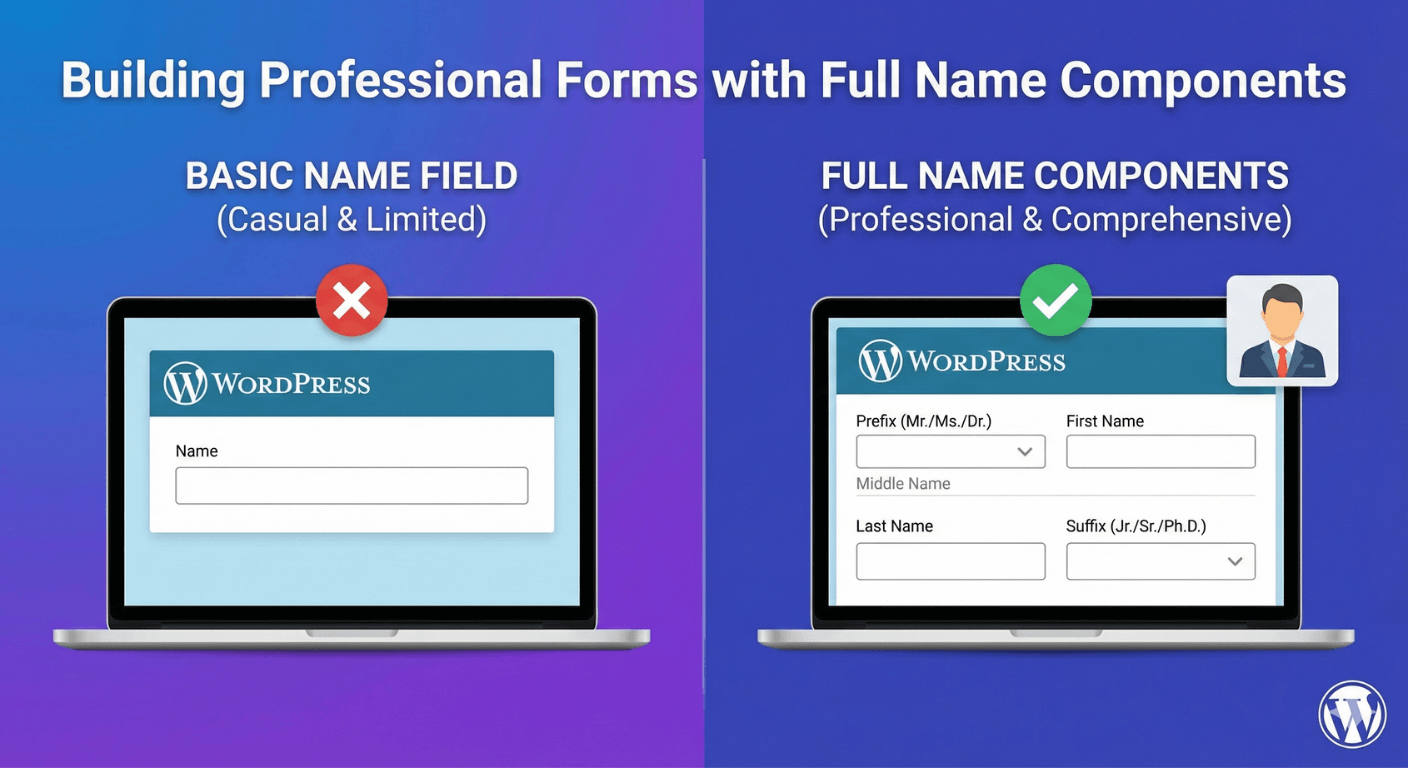
Building Professional Forms with Full Name Components
For a casual form, a single “name” box is fine. But for professional and formal contexts — legal, medical, membership, corporate — a complete, properly-structured name matters. “Dr. Sarah J. Mitchell” carries information a single field can’t capture cleanly, and collecting those parts separately means you can use them properly afterward. Here’s how to build a professional name block with Auto Form Builder’s Name field.
Why structured names matter professionally
A structured name isn’t just tidier — it’s more usable. Separate parts let you address people correctly (“Dear Dr. Mitchell”), sort contacts by last name, and map cleanly into a CRM or system that expects distinct name fields. For any form where the data feeds a professional process — an application, a registration, a client intake — getting the name structure right at collection saves work and looks polished. Our guide to full name vs separate fields covers the basic choice; this is about building the complete professional version.
Enable separate name parts
The Name field supports separate parts — First, Middle, Last, and Suffix — rather than a single combined box. Enable these to collect a properly-structured name. You can lay the parts out stacked or side by side to suit your form’s design, and each is labeled correctly, so your stored entries and email notifications show “First Name,” “Last Name,” and so on rather than a generic “Name” repeated.
Add a title prefix
For formal forms, a title completes the picture. Add a Dropdown field with title options — Mr, Mrs, Ms, Dr, Prof — placed before the name, so people select a consistent title from a list rather than typing it. A dropdown keeps titles uniform (no mix of “Dr”, “Dr.”, “doctor”), which matters for professional correspondence. Our guide to adding title prefixes walks through this in detail.
Choose which parts to require
Not every part is always needed. Use the Name field’s per-part options to require what matters — usually first and last name — while leaving middle name and suffix optional. Making a middle name mandatory, for instance, would block people who don’t use one. Require the essentials and let the rest be optional, so the form stays quick to complete while still capturing a full name when people have one.
Be mindful of name diversity
A professional form should work for everyone. Not all names fit a Western first/middle/last structure, so keep required parts to the genuine minimum and consider your audience. For a global audience, our guide to international name formats covers how to collect names respectfully without imposing assumptions. Flexibility here reads as professionalism, not sloppiness.
Put the complete name to work
Once you’re collecting structured names, use them well. Personalize confirmation emails and follow-ups with the parts you’ve captured, and — because the title comes from a dropdown — you can even use conditional logic based on it where relevant. A complete, correctly-structured name makes every downstream interaction feel considered.
Build a professional name block
- Enable separate name parts (First, Middle, Last, Suffix).
- Add a title dropdown before the name for formal contexts.
- Require only the essential parts.
- Stay mindful of diverse name structures.
- Use the structured data to personalize properly.
A well-built name block is a small signal that your form — and your organization — is professional and considered. It captures complete, usable names cleanly, and it’s free, no code required.
Ready to build professional forms? Install Auto Form Builder free from WordPress.org.
FAQ
Can I collect a full name with all its parts?
Yes. The Name field supports separate parts — First, Middle, Last, and Suffix — and you can add a title prefix with a dropdown for a complete, professional name.
Why collect name parts separately?
Separate parts let you personalize properly, sort by last name, and sync cleanly with other tools — important for formal, professional, and CRM-connected forms.