
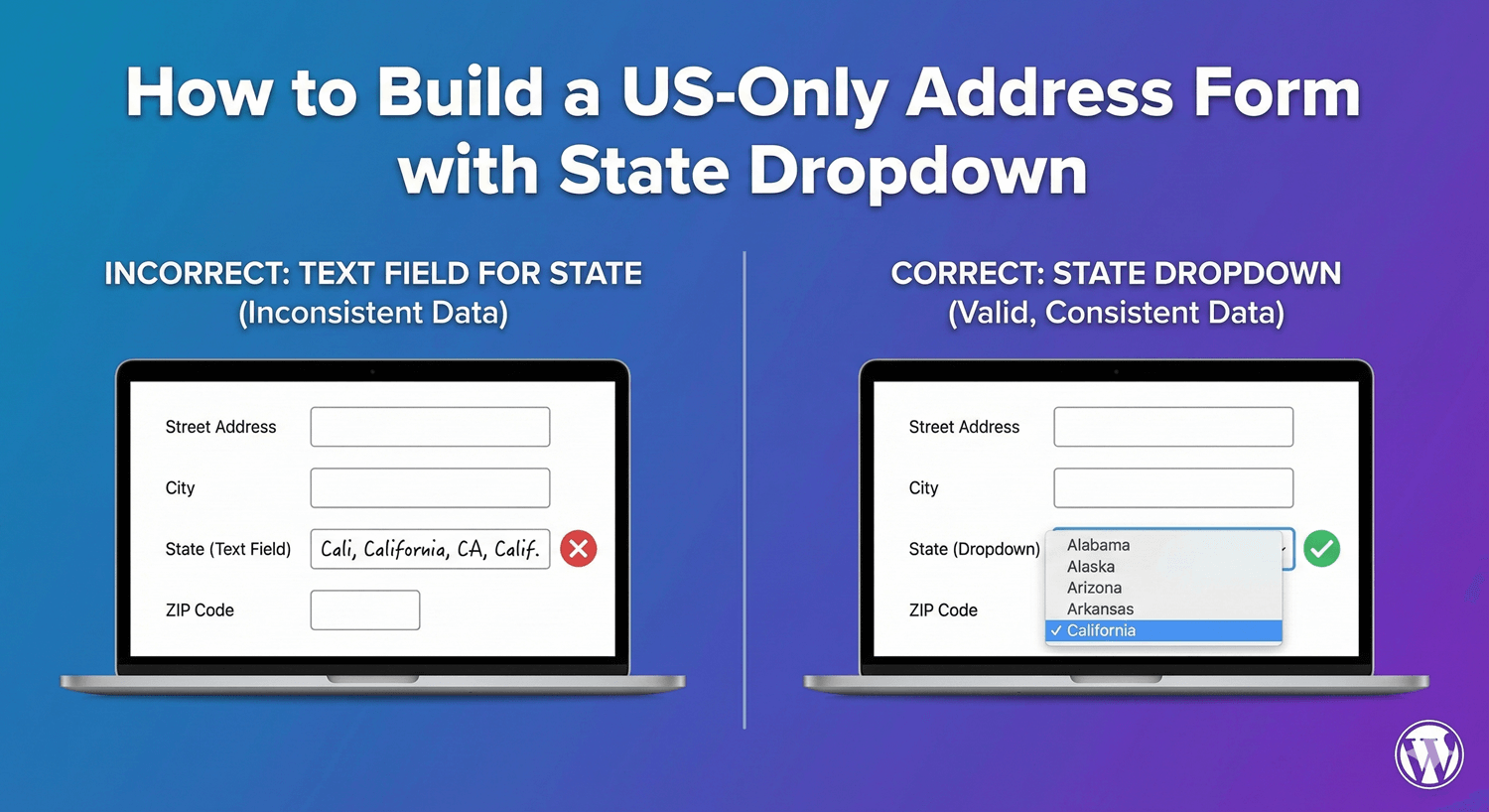
How to Build a US-Only Address Form with State Dropdown
If your business operates only in the United States, your address form should reflect that — clean state selection, no unnecessary country field, and consistent data you can actually use for shipping or service-area checks. A plain address box invites inconsistent state entries (“CA”, “Cali”, “California”) and clutter you don’t need. Auto Form Builder’s Address field lets you build a tidy US-only form. Here’s how.
Start with the Address field
Drag the Address field onto your form. It comes with the components a full US address needs: Address Line 1 and 2, City, State/Province/Region, ZIP/Postal Code, Country, and an optional Company/Organization line. For a US form, you’ll shape these to fit — showing what’s relevant and hiding what isn’t.
Add a state dropdown for consistency
The single biggest improvement to a US address form is a consistent state field. Rather than letting people type their state — and getting a mess of abbreviations, misspellings, and full names — pair the address with a Dropdown field listing all 50 states. Everyone picks from the same list, so your state data is uniform and sortable, which matters enormously for shipping zones, tax, and service-area logic. If the list feels long, enable the searchable option so people can type to filter to their state instantly. This is the US counterpart to our Canadian province dropdown guide.
Hide the country field
If you only serve the US, there’s no reason to ask which country someone is in. Hide the Country component so the form stays short and unambiguous — every address is understood to be a US one. Removing a field people don’t need to answer is a small win for completion, and it keeps your data clean.
Label components clearly
Use labels your US audience expects: “ZIP Code” rather than “Postal Code,” “State” for the dropdown, “Street Address” for line one. Clear, familiar labels reduce hesitation and mistakes. You can also set which components are required — typically Street Address, City, State, and ZIP — using the Address field’s per-component required toggles, so a US address can’t be submitted half-empty. Our guide to customizing address components covers this in depth.
Pre-fill and adapt where useful
Each address component can read its own URL parameter, so you can pre-fill parts of the address from a link for known or returning visitors. And because the state comes from a dropdown, you can use conditional logic based on the selection — for example, showing a region-specific note or option when a particular state is chosen.
A clean US address form, step by step
- Add the Address field and show the components a US address needs.
- Pair it with a 50-state dropdown for consistent state data.
- Hide the Country component since you only serve the US.
- Use US-familiar labels (ZIP, State, Street Address).
- Set the required components so addresses come in complete.
Build it this way and every US address arrives consistent, complete, and ready to use for shipping or service checks — no cleanup, no code, and free.
Related reading: Creating country and state dropdowns in WordPress forms.
Ready to collect clean US addresses? Install Auto Form Builder free from WordPress.org.
FAQ
How do I add a US state dropdown to an address form?
Pair the Address field with a Dropdown listing the 50 states, so people select a state from a consistent list rather than typing it.
Can I hide the country field for a US-only form?
Yes. If you only serve the US, hide the Country component so the form stays short and focused on US addresses.