
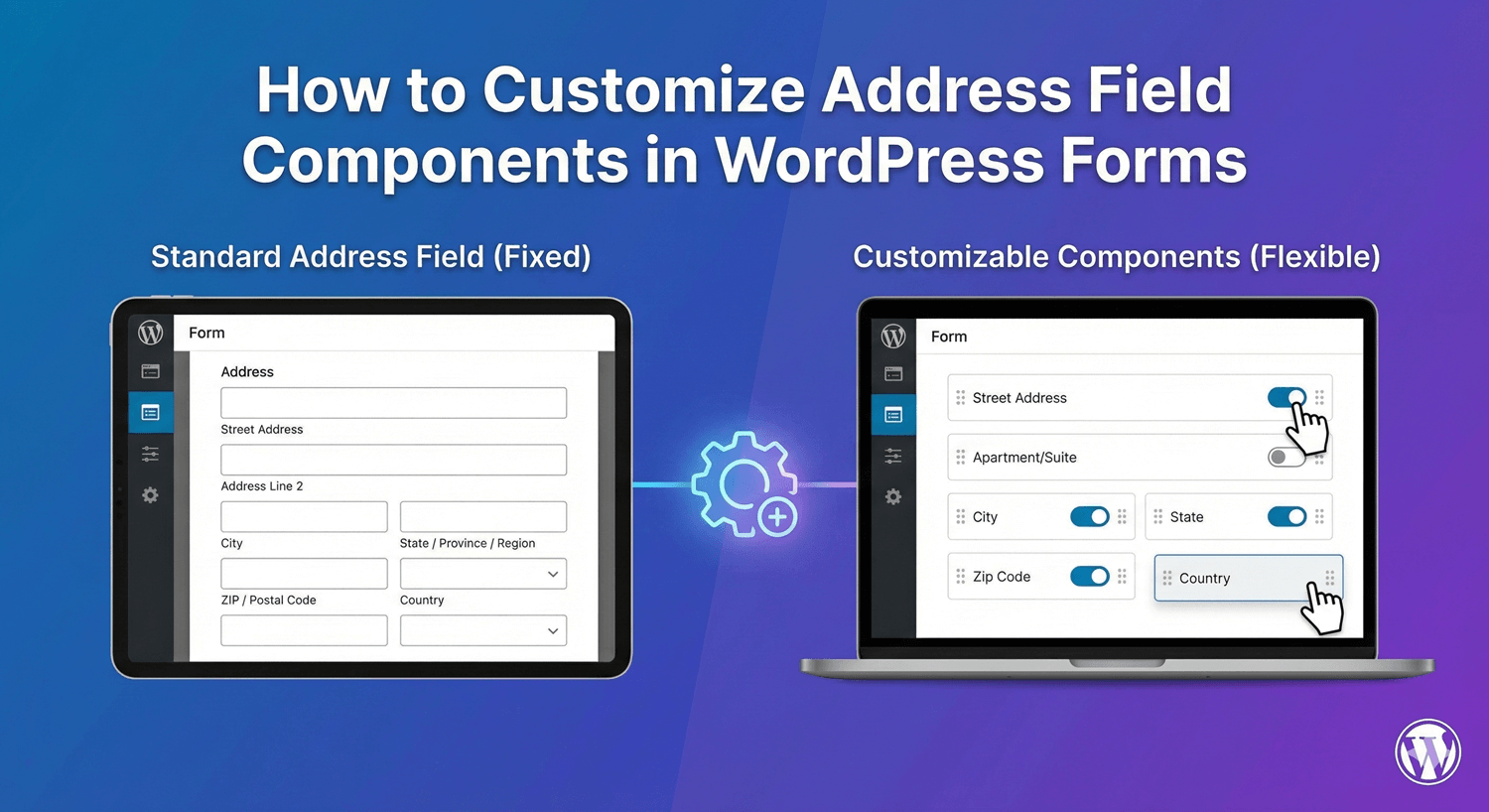
How to Customize Address Field Components in WordPress Forms
The default address field on most forms is all-or-nothing: you get every component whether you need it or not, and you can’t control which parts are required. Auto Form Builder’s Address field works differently — it’s built from individual components you can show, hide, and require one by one. That means a shipping form, a service-area check, and a simple city lookup can each use the same field, tuned to exactly what they need. Here’s how to customize it.
The components you’re working with
The Address field is made up of parts: Address Line 1, Address Line 2, City, State/Province/Region, ZIP/Postal Code, Country, and an optional Company/Organization line. Rather than treating an address as one blob, you decide which of these appear and how each behaves.
Show only the parts you need
The fastest way to improve an address form is to remove what you don’t use. Collecting emails for a local newsletter? You might only need a postal code. Shipping physical goods? You’ll want the full set. Hide the components that don’t apply so the form stays short and focused — every field you remove is one less thing between the visitor and submit.
Set per-component required rules
Not every part of an address carries the same weight. The Address field gives each component its own required toggle, so you can require City, Province, and Postal Code while leaving Address Line 2 or Company optional. There’s a smart safeguard built in: when you mark the Address field itself as required, the always-shown core parts — Address Line 1 and City — become required automatically, so a “required” address can’t be submitted empty. Any component you’ve hidden is skipped, so a required toggle on a disabled part never blocks submission.
Handle the Country component thoughtfully
If you serve one country, hide the Country component entirely — there’s no reason to ask. If you serve several, show it, and when it’s required, no default is silently pre-selected, so visitors have to choose explicitly rather than accidentally submitting the wrong country. That small detail keeps your location data honest.
Pre-fill components from a URL
Each address component can read its own URL parameter, which means you can pre-populate parts of the address from a link — First-line, City, Province, Postal Code, and more, each mapped individually. For known or returning visitors, or campaign links where you already have some details, this saves re-typing and lifts completion. It also works for forms embedded on other sites, forwarding the host page’s parameters to the embedded form.
Combine with conditional logic
Because the address is structured, you can pair it with conditional logic elsewhere on the form — for example, showing a “Delivery instructions” field only when someone provides a shipping address, or revealing the full address only after they choose “ship to me.” The address adapts to the flow instead of sitting there as a wall of fields.
Cleaner addresses, less friction
Customizing the Address field comes down to a simple principle: ask for exactly what you need, require only what matters, and pre-fill what you already know. Do that and your address data arrives complete and consistent, while your form stays short enough that people actually finish it. Everything you submit is stored, component by component, in your submissions dashboard.
Ready to build a smarter address form? Install Auto Form Builder free from WordPress.org.
FAQ
Can I hide address parts I don't need?
Yes. The Address field lets you show or hide individual components, so you can display only the parts your form actually needs.
Can each address part be required independently?
Yes. Each component has its own required toggle, and marking the field itself required automatically requires the core parts, Address Line 1 and City.