
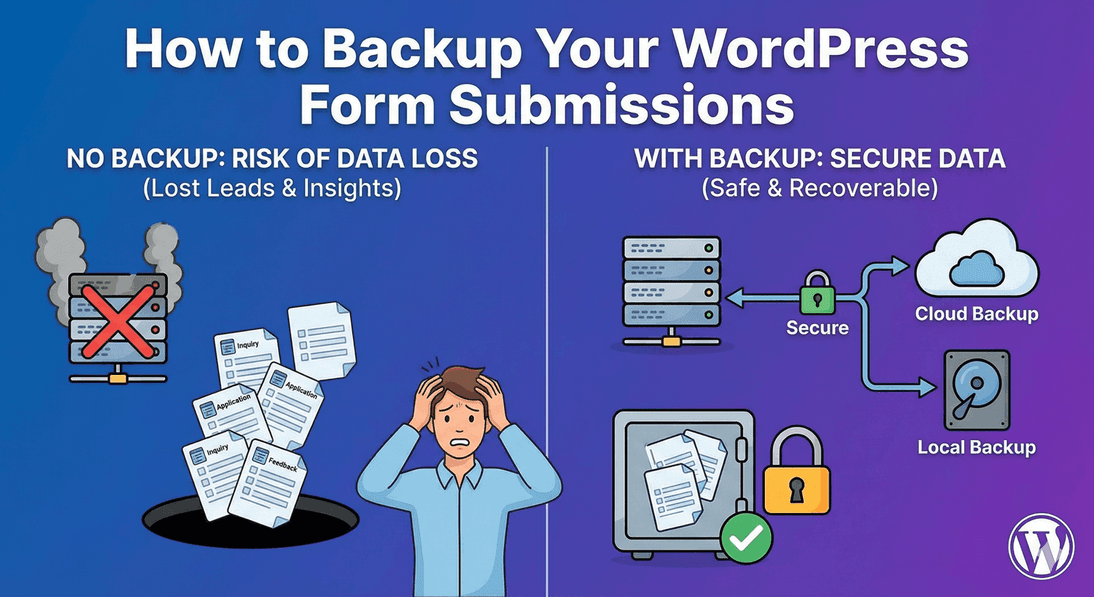
How to Backup Your WordPress Form Submissions
Your form submissions are among the most valuable data on your site — leads, orders, applications, enquiries, each representing real business value. Yet many people never think about backing them up until something goes wrong. A regular backup is cheap insurance against accidental deletion, site problems, or a migration gone sideways. Here’s how to back up your submissions with Auto Form Builder, and how to build it into a habit.
Why backing up submissions matters
Data you can’t afford to lose deserves a backup, and form submissions absolutely qualify. Consider what’s in them: contact details for leads you’ve worked hard to earn, orders you need to fulfil, applications you’re reviewing. Losing that data — to an accidental bulk delete, a database issue, or a botched site move — could mean lost revenue and lost opportunities. Because submissions are stored on your own site, they’re under your control, which is great for privacy but also means their safety is your responsibility.
Export to CSV or JSON
Backing up is simply a matter of exporting. From your submissions dashboard, you can export entries to CSV or JSON:
- CSV is ideal for opening in a spreadsheet, reviewing, or importing into most other tools.
- JSON preserves the structured data, which is useful for more technical backups or migrations.
The exported file is a complete, portable copy of your submissions that you can store wherever you keep your backups — your computer, cloud storage, or alongside your other site backups.
Back up selectively or in full
You don’t have to export everything every time. Use the dashboard’s filters first — by form or by date range — to export exactly the slice you want. That’s handy for archiving a completed campaign’s leads, or taking a monthly snapshot of new entries. For a full backup, export without filters to capture everything. Either way, our guide to searching and filtering submissions helps you target precisely what to back up.
Make it a regular habit
A backup is only as good as how recent it is. Build exporting into a routine — monthly, or after any significant campaign or period of high volume. A regular cadence means that if something ever goes wrong, you lose at most a little recent data rather than everything. Pair it with your broader site backup routine so submissions are covered alongside the rest of your site.
Backup before you clean up
There’s one moment when backing up is especially important: before you delete. Whenever you’re about to clear out old entries or run a bulk delete, export first. That way, if you later realize you needed something, you still have it. Making “export before delete” a rule prevents the sinking feeling of removing data you turn out to need.
Your backup routine
- Export submissions to CSV or JSON from the dashboard.
- Use filters to back up a specific form or period, or export everything.
- Store the file with your other backups, ideally off the site.
- Do it on a regular schedule, and always before deleting entries.
Backing up your submissions takes a minute and protects data that could be worth a great deal to your business. It’s a simple export, it’s free, and it’s one of those habits you’ll be very glad you had if you ever need it.
Ready to keep your submissions safe? Install Auto Form Builder free from WordPress.org.
FAQ
How do I back up my form submissions?
Export your submissions to CSV or JSON from the dashboard. The exported file is a portable backup you can store safely or import elsewhere.
Why back up form submissions?
Submissions are valuable data — leads, orders, applications. A regular export protects that data against accidental deletion, site issues, or migration mishaps.