
How to Add Radio Buttons to WordPress Forms
When a question has exactly one right answer per person — a plan, a preference, a yes or no — radio buttons are the clearest way to ask it. Unlike a dropdown that hides its options until clicked, radio buttons lay every choice out in the open, so people see the full set and pick one at a glance. Here’s how to add them in Auto Form Builder and use them well.
What radio buttons are for
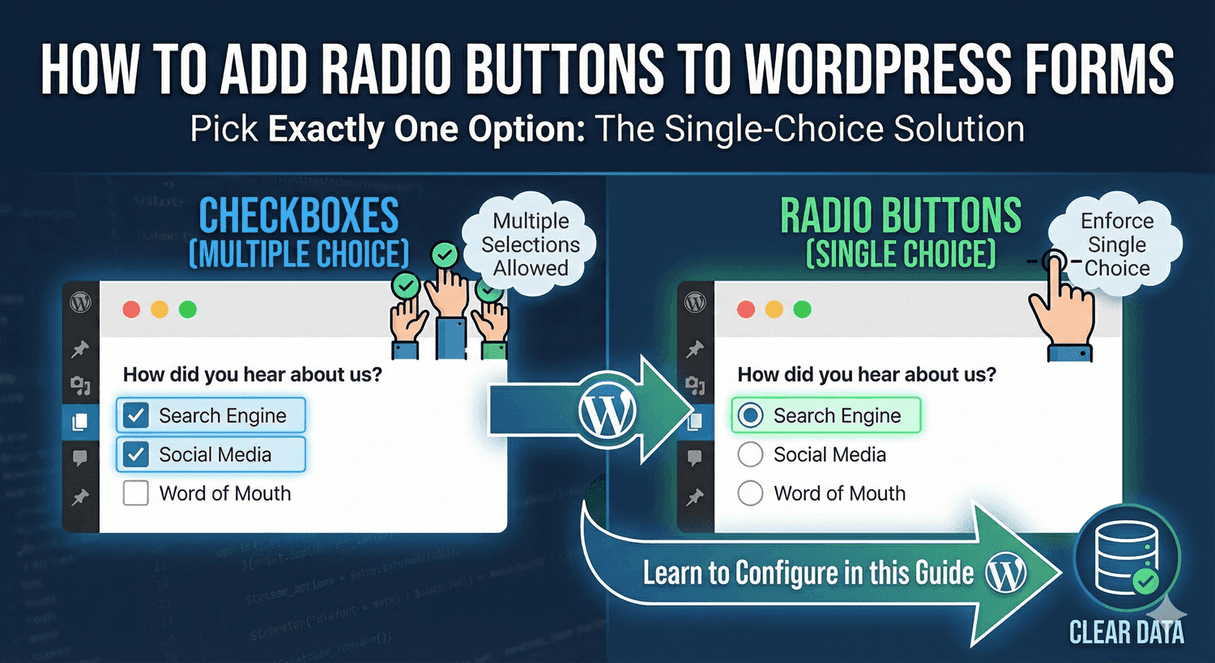
A Radio field lets people select exactly one option from a list. That “exactly one” is the defining trait — radios are for mutually exclusive choices, where picking one means not picking the others. Choose a plan, a delivery method, a yes/no, a single preference: all natural fits for radio buttons.
Add a radio field
Drag a Radio field onto your form and click it to configure. Add your options — each becomes a selectable button — and give the field a clear label that frames the choice (“Which plan?”, “Preferred contact method?”). Keep the option labels short and distinct so the choice is easy to scan.
Radio buttons vs dropdowns
Both collect a single choice, so which should you use?
- Use radio buttons for shorter lists (up to roughly six or seven options) where seeing everything at once helps people decide.
- Use a dropdown for longer lists, or when you want to save vertical space on the form.
The rule of thumb: radios make the options visible and the choice fast; dropdowns keep long lists tidy. Our guide to searchable dropdowns covers the long-list case.
Drive logic from the selection
This is where radio buttons become powerful. A radio selection can trigger conditional logic, so the option someone picks shapes the rest of the form. Choose “Other” and a text box appears; select “Business” and company fields show up; pick “No” and a whole section stays hidden. Because radios present clear, discrete choices, they’re one of the most natural triggers for conditional logic — see our guide to showing and hiding fields.
Set required rules
If the choice is mandatory, mark the field required and the form won’t submit until an option is selected. The required indicator appears on the field’s own label rather than on every option, keeping the group clean. Consider whether you need a neutral option (“No preference”) so people aren’t forced into a choice that doesn’t fit.
Use radios for rating scales too
Because they present a clear row of single-choice options, radio buttons also make a simple rating scale — 1 to 5, or “Poor” to “Excellent.” For quick scales that also drive logic, they work well; for richer surveys with charted results, the dedicated rating fields go further, as covered in our guide to rating scales with radio buttons.
Add radio buttons the right way
- Use radios for single-choice questions with a short option list.
- Keep labels short and distinct.
- Choose a dropdown instead for long lists.
- Use the selection to drive conditional logic.
- Set required rules and consider a neutral option.
Radio buttons are one of the most straightforward, versatile fields on a form — clear for people to use and powerful when wired into logic. And they’re free, no code required.
Ready to add radio buttons to your forms? Install Auto Form Builder free from WordPress.org.
FAQ
When should I use radio buttons instead of a dropdown?
Use radio buttons for a short list where showing every option at once helps people choose. Use a dropdown when the list is long or you want to save space.
Can a radio choice change the rest of the form?
Yes. A radio selection can trigger conditional logic, showing or hiding other fields based on which option someone picks.