
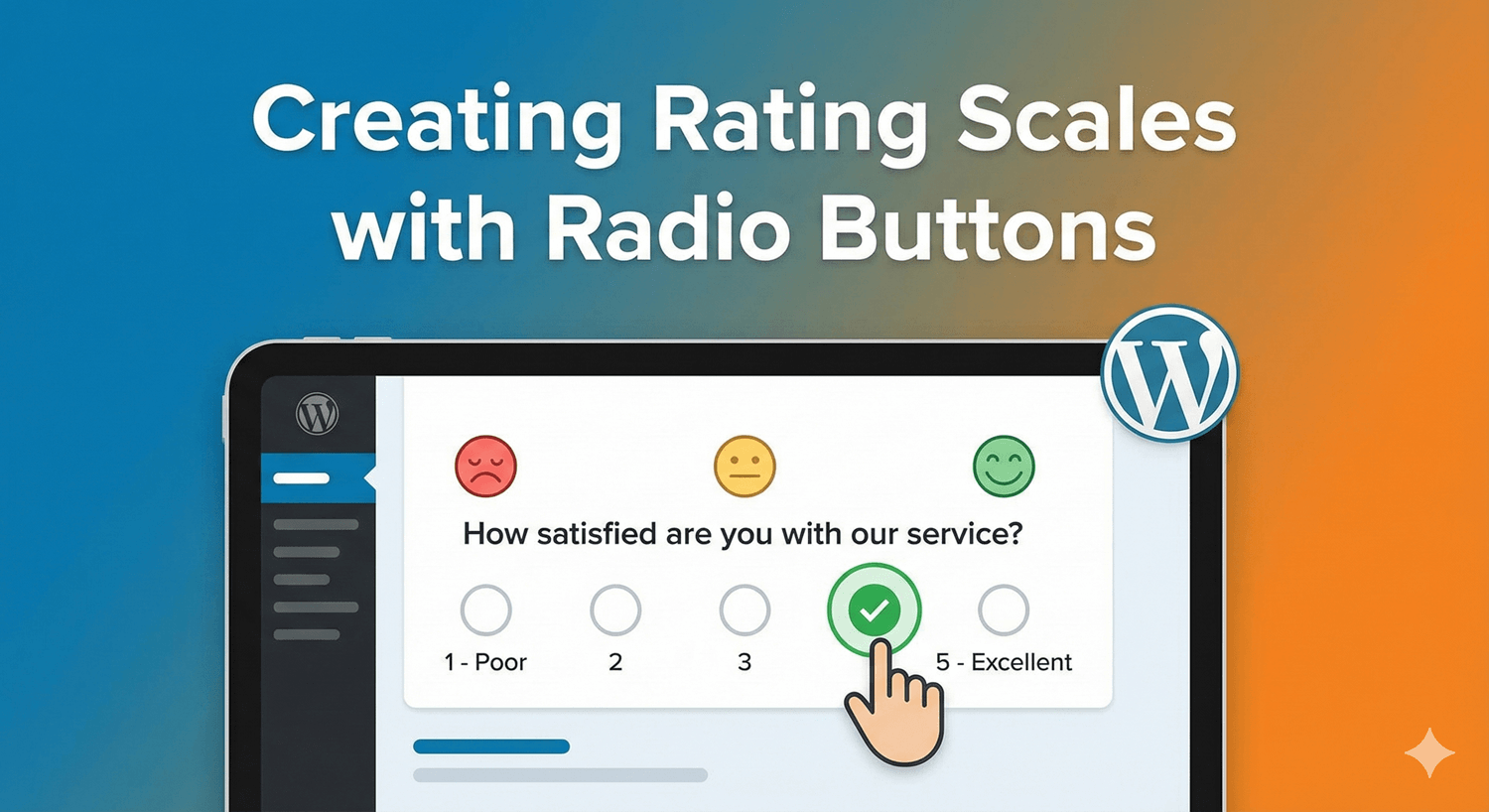
Creating Rating Scales with Radio Buttons
A rating scale is one of the most useful things you can put on a form — it turns a fuzzy opinion into a number you can track. The simplest way to build one is with radio buttons, and for many forms that’s all you need. But Auto Form Builder also includes purpose-built rating fields for when you want something richer. Here’s how to build a scale with radios, and when to reach for a dedicated field instead.
Building a rating scale with radio buttons
A Radio field lets people pick exactly one option from a list — which is precisely what a rating scale is. Add a Radio field, give it options like 1, 2, 3, 4, 5 (or “Poor” through “Excellent”), and you have a clean single-choice scale. Radios show every option at once, so people can see the whole range and choose without any extra clicks. It’s clear, familiar, and works anywhere.
Because a radio selection can trigger conditional logic, you can also act on the rating — for example, showing a “Tell us more” field when someone picks a low option. That makes even a simple radio scale surprisingly powerful.
When radio buttons are the right choice
Reach for radio buttons when:
- You want a small, labeled scale (like 1–5 with word labels).
- You want every option visible at once.
- You need the choice to drive conditional logic.
- You’re keeping the form simple and don’t need charts.
When to use a dedicated rating field
For surveys and feedback where you want a familiar visual scale and automatic results, Auto Form Builder’s survey fields go further than radios:
- Star Rating — the universally understood star scale, from 3 to 10 stars.
- Opinion Scale — numbered buttons with custom labels at each end, ideal for agreement or likelihood questions.
- NPS — the standard 0–10 loyalty scale, scored automatically.
The big advantage of these over plain radios is what happens after submission: they feed the Survey Results page, which turns responses into distribution charts and trends automatically. With radios you’d read raw answers; with a rating field you get the visual analysis built in.
How to choose
- Use radio buttons for a simple, self-contained scale, especially when you want to trigger follow-up logic.
- Use Star Rating for instantly recognizable satisfaction ratings.
- Use Opinion Scale for agreement or likelihood questions with labeled ends.
- Use NPS when you specifically want a Net Promoter Score.
The bottom line
There’s no single “right” rating field — there’s the right one for your form. Radio buttons give you a clear, flexible scale that’s perfect for simpler forms and conditional follow-ups. The dedicated rating fields add familiar visuals and automatic charts for proper surveys. Both are free, and both take a minute to set up.
Related reading: How to add radio buttons to WordPress forms.
Ready to start measuring what people think? Install Auto Form Builder free from WordPress.org.
FAQ
Can I build a rating scale with radio buttons?
Yes. A Radio field with options like 1 to 5 makes a clear single-choice rating scale, and the selection can drive conditional logic.
When should I use a dedicated rating field instead?
Use Star Rating, Opinion Scale, or NPS when you want a familiar visual scale and automatic charted results on the Survey Results page.