
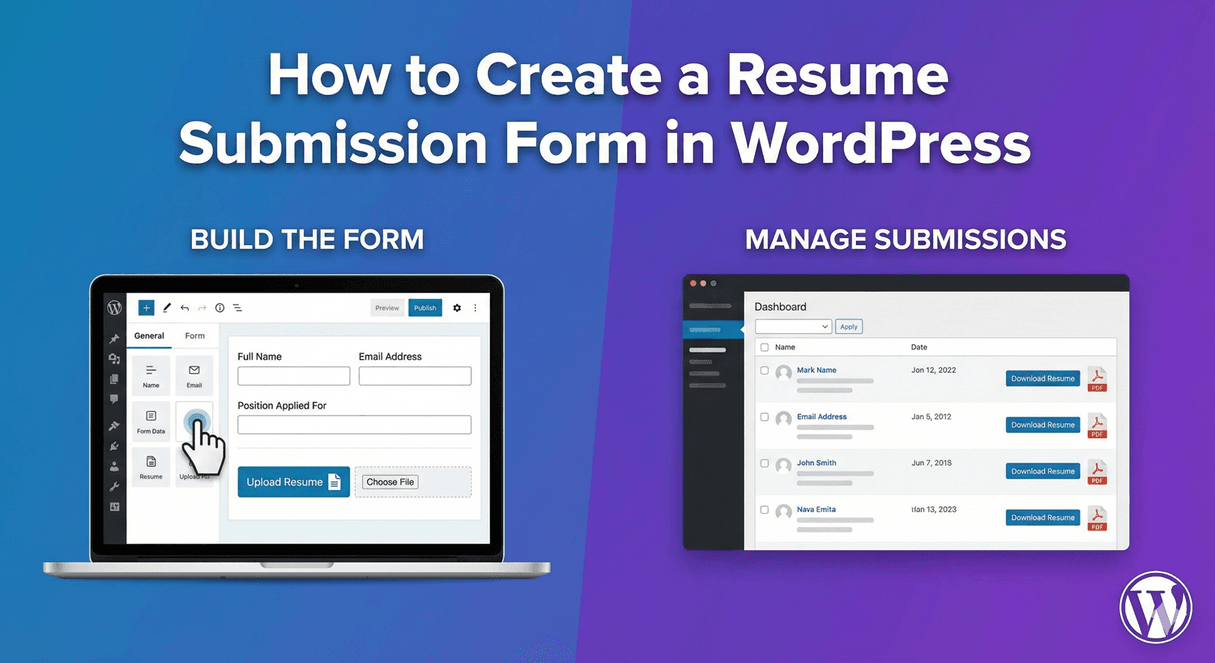
How to Create a Resume Submission Form in WordPress
Hiring starts with collecting applicants, and a resume submission form is the cleanest way to do it — far better than a careers inbox filling up with attachments you have to sort by hand. A good form gathers the CV, the essentials, and any screening answers in one organized place. Here’s how to build one in WordPress with Auto Form Builder, free and no code.
Add a resume upload field
The heart of a resume form is the file upload. Add a File Upload field and configure it for CVs:
- Set Allowed File Types to documents — PDF and DOC/DOCX are what most resumes come as. You might allow images too if you accept design portfolios.
- Set a Maximum File Size so uploads stay reasonable.
- Consider enabling drag-and-drop and file previews for a smoother experience.
Label it clearly — “Upload your CV (PDF)” — so applicants know exactly what to send. Our guide to secure file uploads covers locking this down.
Collect the essential details
Alongside the CV, gather the basics: a Name field, an Email field to reach candidates, a phone number, and the role they’re applying for (a dropdown if you have several openings). Keep the core short — the resume carries most of the detail, so the form’s job is to capture contact info and route the application.
Add screening questions with conditional logic
You can make the form do some early filtering. Add screening questions — years of experience, location, work authorization, availability — and use conditional logic to show follow-ups only when relevant. Ask a specialization question only for certain roles, or reveal a “notice period” field only for current employees. This gathers the qualifying details you need without making every applicant answer everything.
Use multi-step for longer applications
If your application asks for more — a cover letter, portfolio links, several screening questions — a single long form feels daunting. Turn it into a multi-step form with a progress bar, so applicants move through manageable sections. Our guide to job application forms covers this use case in full. Longer applications complete better when broken into steps.
Keep applicants organized
This is where a form beats an inbox decisively. Every application lands in your submissions dashboard, with the CV attached to the right candidate. From there you can search by any field, filter by role or date, and — with the free Entry Tags add-on — tag candidates by stage (New, Screening, Interview, Rejected) to run a simple hiring pipeline. Export to CSV when you need to share a shortlist. No candidate gets lost, and no attachment goes missing.
Protect a public careers form
A public application form can attract spam and junk uploads. Turn on spam protection so bots don’t clutter your applicant list, keeping your pipeline full of real candidates.
Build a resume submission form
- Add a File Upload field set for documents, with a size limit.
- Collect name, email, phone, and the role.
- Add screening questions with conditional logic.
- Use multi-step for longer applications.
- Track applicants with search, filters, and tags in the dashboard.
- Enable spam protection on public forms.
A well-built resume form turns hiring from a messy inbox into an organized pipeline — every CV captured, every applicant tracked. It’s all free, no code required.
Ready to streamline your hiring? Install Auto Form Builder free from WordPress.org.
FAQ
Can applicants upload their resume?
Yes. Add a File Upload field set to accept documents (like PDF and DOC), with a size limit, so applicants attach their CV directly to the form.
Can I keep applicants organized?
Yes. Every application is stored in your dashboard, where you can search, filter, tag, and export — so no candidate gets lost.