
How to Create a Feedback Form with Rating System in WordPress
The most useful feedback answers two questions at once: how do people feel, and why. A rating captures the feeling in a single tap; an open comment captures the reason. Put them together and you get feedback you can actually act on. Auto Form Builder makes this easy with purpose-built rating fields and visual results — free, and without a separate survey tool. Here’s how to build it.
Step 1: Add a rating field
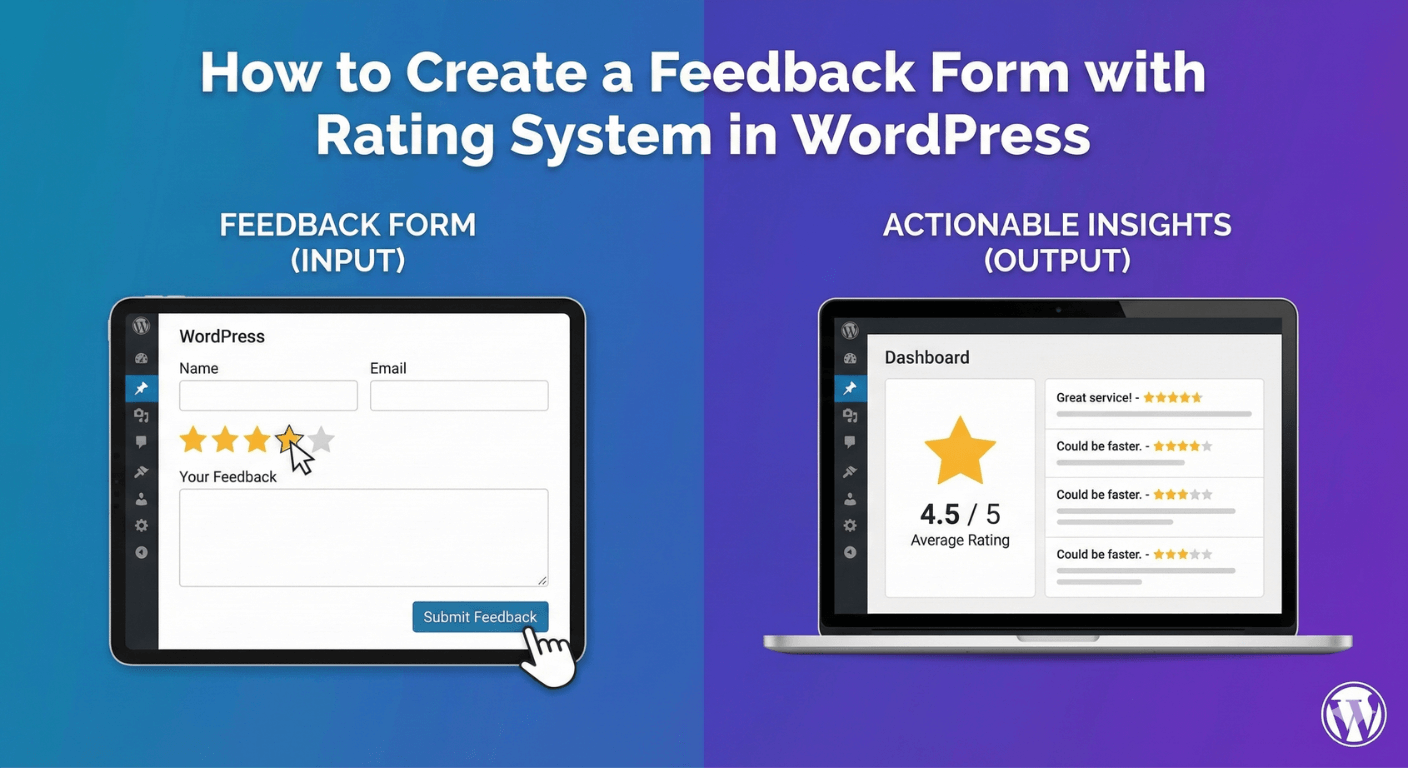
Start a new form and add a Star Rating field. You can set it anywhere from 3 to 10 stars, and it’s keyboard accessible, so everyone can use it. Stars are the most familiar rating pattern, which makes them a safe default — but if you want a different feel, the survey set also includes Opinion Scale (numbered buttons with labels at each end) and NPS (the standard 0–10 loyalty question). Pick the scale that matches what you’re measuring.
Step 2: Add a comment field for the “why”
Beneath the rating, add a Textarea field for an open comment. A rating tells you where you stand; the comment tells you what to change. Keep the label inviting — “What made your experience good or bad?” gets more useful answers than a bare “Comments.”
Step 3: Ask follow-ups only when they matter
Here’s where feedback forms get smart. You don’t want to interrogate happy customers or let unhappy ones leave without detail. With conditional logic, you can show a “What can we improve?” field only when the rating is low, and perhaps a “Mind if we share this as a testimonial?” prompt only when it’s high. Each person sees the follow-up that fits their experience, and your form stays short.
Step 4: Keep it short
Feedback forms live or die on length. The more you ask, the fewer responses you get — and feedback is a numbers game. Resist the urge to add ten questions. A rating, one open comment, and a smart follow-up is usually all you need.
Step 5: Read the results visually
Once responses come in, you don’t have to wade through a spreadsheet. Survey fields feed the Survey Results page, which shows answer distribution as charts and tracks a 30-day response trend, so you can see at a glance whether things are improving. For a wider view of how the form itself is performing — views, submissions, conversion rate — the form analytics give you that too.
Tips for feedback that drives change
- Lead with the rating; it’s the fastest thing to answer and sets the tone.
- Always pair the rating with room to explain — the comment is where the insight lives.
- Use conditional follow-ups so low scores generate specifics you can fix.
- Watch the trend over time, not just individual responses.
A good feedback form turns vague impressions into clear direction. With a rating, a comment, and a little conditional logic, you’ll know not just how people feel but exactly what to do about it — all built free in Auto Form Builder.
Related reading: Building survey forms with branching logic and creating rating scales with radio buttons.
Ready to hear what your audience thinks? Install Auto Form Builder free from WordPress.org.
FAQ
Can I show a follow-up question only for low ratings?
Yes. Conditional logic can reveal a 'What can we improve?' field only when the rating is low, so you gather detail exactly where it matters.
Can I see the results visually?
Yes. Survey fields feed the Survey Results page, which shows distribution charts and a response trend, so you read ratings at a glance.