
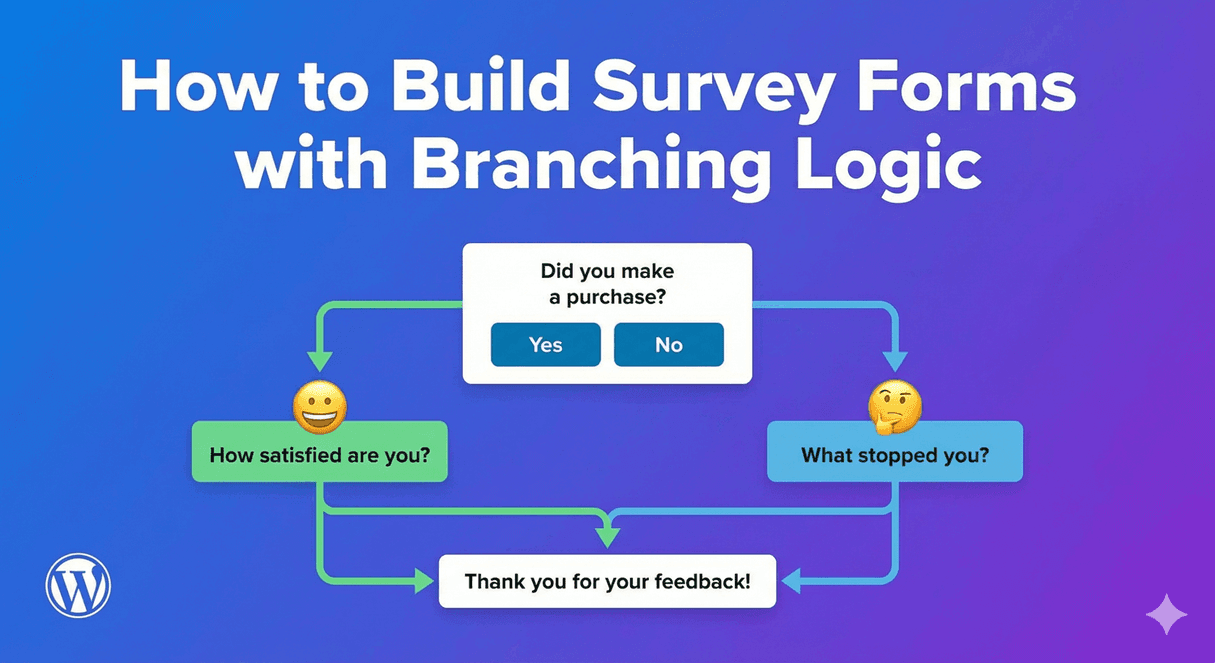
How to Build Survey Forms with Branching Logic
The best surveys feel effortless because they never waste your time. Ask everyone every question and people drop out; ask each person only what’s relevant and completion soars. That’s what branching logic does — it routes each respondent through a path that fits their answers. Auto Form Builder lets you build exactly this kind of adaptive survey, free, and then reads the results back to you visually. Here’s how.
Start with the right survey fields
Auto Form Builder includes a dedicated set of survey fields: Star Rating, NPS (the 0–10 loyalty scale), Opinion Scale (numbered buttons with labeled ends), and Tabular Survey (a Likert-style grid). Pick the ones that match what you’re measuring — an NPS field for loyalty, a Star Rating for satisfaction, a Tabular Survey for rating several items at once. These aren’t just inputs; they feed the visual results you’ll see later.
Show follow-up questions with conditional logic
The simplest form of branching is showing a question only when it’s relevant. With conditional logic, you can reveal a “What went wrong?” question only when someone gives a low rating, or a “Would you recommend us?” prompt only to people who rated highly. Conditional logic works with every survey field — including matching on any row’s answer in a tabular survey — so your survey reacts intelligently to what people tell you. Everyone gets a survey that feels tailored, and nobody wades through questions that don’t apply.
Branch across steps for longer surveys
For bigger surveys, go further with multi-step forms. Split the survey into steps with Page Break fields, add a progress bar, and use answer-based branching to skip entire steps or jump ahead based on earlier responses. Someone who says they’re a new customer can skip the “how long have you used us” section entirely. Branching is forward-only and loop-safe, so respondents always move cleanly toward the end — no dead ends, no repeats.
Keep it short to protect completion
Branching exists to serve one goal: a shorter survey for each person. Resist the temptation to add questions just because you can. Every question you show should earn its place, and branching lets you show fewer of them to each respondent while still gathering everything you need across your whole audience.
Read the results visually
Once responses come in, the payoff arrives. Survey fields feed the Survey Results page, which turns answers into distribution and stacked-bar charts, calculates an NPS score automatically with the Promoter/Passive/Detractor breakdown, and tracks a 30-day response trend. You read insight, not raw rows — and survey answers also appear formatted in the entry details and in CSV exports.
Building a smarter survey, step by step
- Choose the survey fields that fit what you’re measuring.
- Use conditional logic to reveal follow-ups only when relevant.
- Use multi-step branching to skip whole sections for people they don’t apply to.
- Keep each person’s path short, and let the Survey Results page do the analysis.
A survey with branching logic respects people’s time, which is exactly why more of them finish it — and better completion means better data. It’s all built into Auto Form Builder, for free.
Related reading: Creating a feedback form with a rating system and creating rating scales with radio buttons.
Ready to build a smarter survey? Install Auto Form Builder free from WordPress.org.
FAQ
Can a survey show different questions based on answers?
Yes. Conditional logic shows or hides questions based on earlier answers, and multi-step branching can skip whole steps, so each person only sees what's relevant.
Do I get visual results from the survey?
Yes. Survey fields feed the Survey Results page with distribution charts, an automatic NPS score, and a 30-day response trend.