
How to Add Phone Number Fields to WordPress Forms
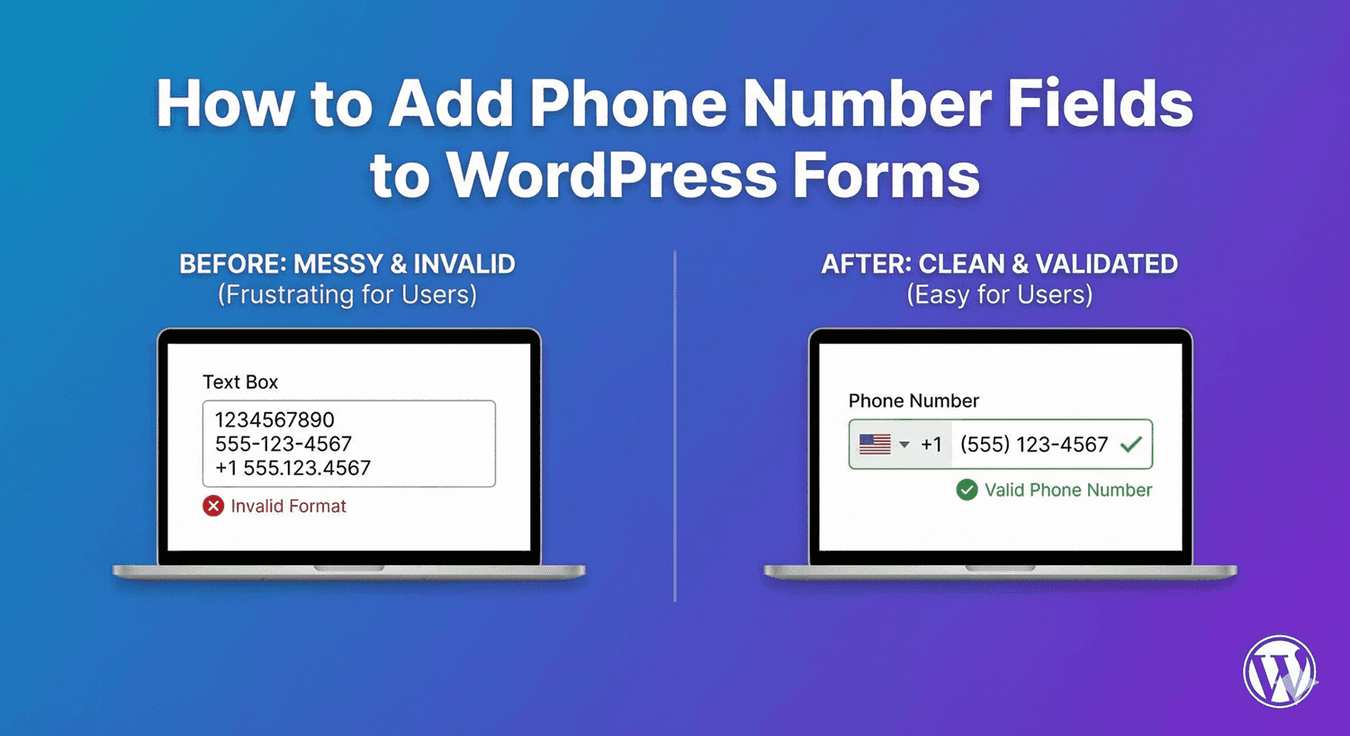
A phone number seems like the kind of thing you could collect with any text box — until you see the results: numbers with dashes, without, with spaces, with country codes, without, in a dozen inconsistent shapes you can’t reliably dial or sync. Auto Form Builder’s Phone field is purpose-built to collect clean, consistent phone numbers. Here’s how to add one and configure it well.
Why use a dedicated phone field
Using a proper Phone field instead of a plain text box gives you formatting, validation, and structure built specifically for phone numbers. That means the numbers you collect are consistent, dialable, and ready to sync with your CRM or messaging tools — rather than a jumble you have to clean up. For any form where you’ll actually call or text people, the dedicated field pays for itself immediately.
Add the Phone field
Drag the Phone field onto your form and give it a clear label. Then set it up for your audience — the key configuration steps are choosing a format, enabling format-as-you-type, and relying on validation. Each is quick, and together they make a real difference to data quality.
Choose the right format
The Phone field supports multiple formats, so pick the one that matches your audience. Choosing a format means the field validates against a sensible pattern for that region. For a US audience, that’s the (123) 456-7890 style (our US phone format guide); for a UK audience, there’s a dedicated UK Mobile format that accepts both domestic (07700 900123) and international (+44) styles. For a global audience, our guide to international phone numbers covers the broader approach.
Enable format-as-you-type
The single best setting for clean phone data is format-as-you-type. With it on, the field structures the number as the person types — adding spacing and grouping — so it stays readable and arrives in a consistent shape rather than as a raw string of digits. It’s a small touch with an outsized effect, and it reassures people that the field is working properly.
Rely on validation
Built-in validation checks that entries fit the expected format, flagging anything malformed with an inline error and blocking submission until it’s corrected. That means broken numbers are caught at the point of entry — while the person is right there to fix them — instead of being discovered later when you try to call. Our guide to custom phone formats covers the formatting and validation options in more depth.
Add an icon and ask only when needed
You can place an icon inside the Phone field to make its purpose obvious. And because a phone number is something people hesitate to give, only require it when you genuinely need it — use conditional logic to show the field only when someone requests a callback or picks an option that requires it. That keeps your form short and your completion rate high.
Add a phone field the right way
- Drag in the Phone field and label it clearly.
- Choose the format that fits your audience.
- Enable format-as-you-type for consistent numbers.
- Rely on validation to catch mistakes.
- Add an icon, and only require it when needed.
A well-configured phone field collects numbers that are clean, consistent, and ready to use — a big upgrade over a plain text box. It’s built into the free core, no code required.
Ready to collect clean phone numbers? Install Auto Form Builder free from WordPress.org.
FAQ
How do I add a phone number field?
Drag the Phone field onto your form, choose a format for your audience, and enable format-as-you-type so numbers come in clean and consistent.
Does it validate phone numbers?
Yes. Built-in validation flags entries that don't fit the expected format, so malformed numbers are caught before the form submits.