
Custom Phone Formats: Creating Your Own Phone Pattern
A phone number that arrives in the wrong shape is a small problem that adds up fast — numbers you can’t dial, exports that break, automations that misfire. The fix is to guide people toward a consistent format at the point of entry. Auto Form Builder’s Phone field gives you formats and validation to do exactly that, and for the rare case that needs something bespoke, the Text field can carry a custom pattern. Here’s how to get clean phone data either way.
Start with the right built-in format
The Phone field supports multiple formats, so your first move is to match the format to your audience. Choosing the right format means the field validates against a sensible pattern and rejects obviously wrong entries. For a UK audience, there’s a dedicated UK Mobile format that accepts both domestic (07700 900123) and international (+44 7700 900123 or 0044 7700 900123) styles — so people can enter their number naturally and it still passes validation.
Turn on format-as-you-type
The single easiest way to improve phone data is to structure the number as it’s typed. With format-as-you-type enabled, spacing and grouping are added on the fly, so the number stays readable and arrives in a consistent shape rather than as a raw string of digits. It’s a small setting with an outsized effect on data quality.
Let validation catch mistakes
Built-in validation means a number that doesn’t fit the expected format is flagged with an inline error, and the visitor is prompted to fix it before submitting — so bad numbers don’t slip through in the first place. That’s far better than discovering a broken number later when you try to use it.
When you need a truly custom pattern
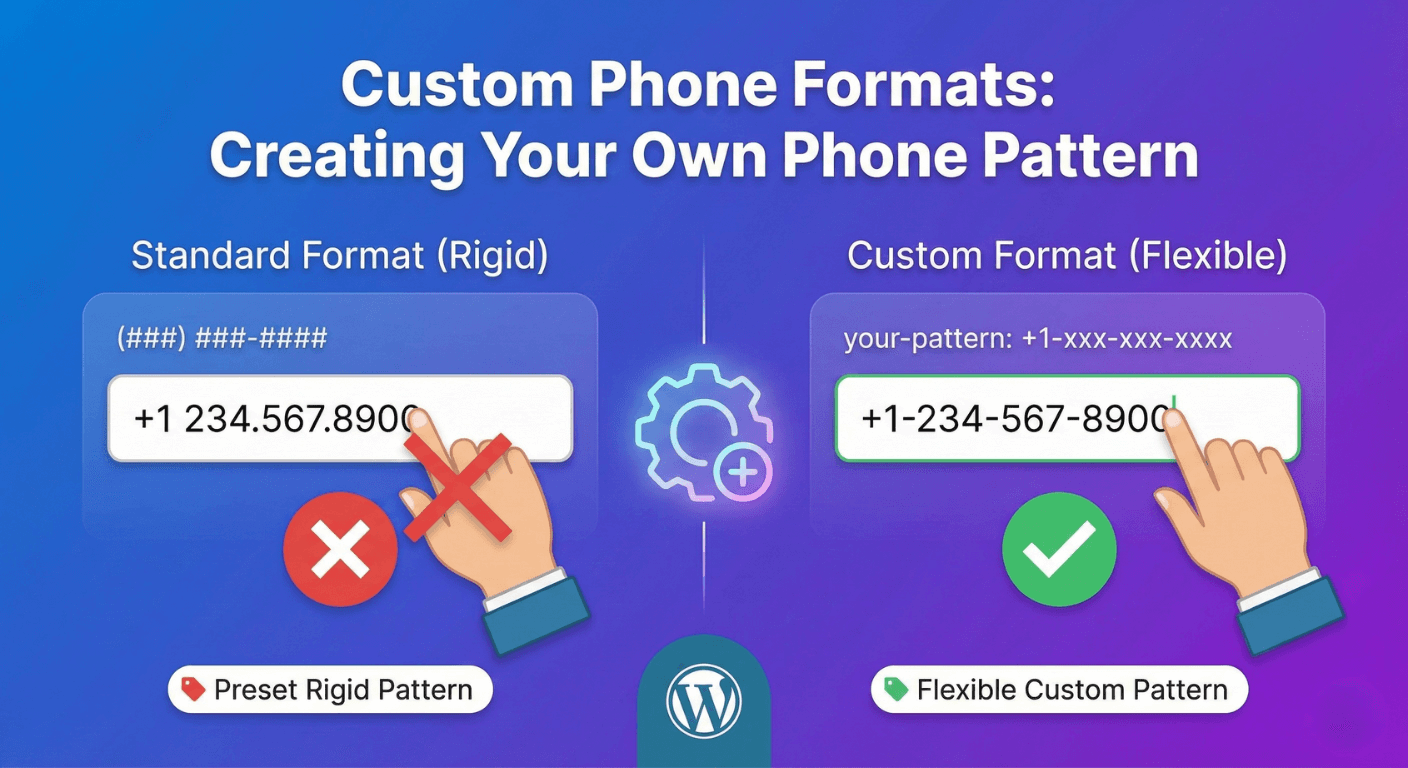
Sometimes you need something the standard formats don’t cover — an internal extension format, a reference-style code, or a very specific national pattern. For those cases, reach for the Text field, which supports pattern/format validation with inline error messages. It’s the right tool when you need to define your own rule rather than pick from the phone formats. In short: use the Phone field for phone numbers and its ready-made formats; use a Text field with a pattern when you genuinely need a custom rule.
Ask for a phone number only when you need it
Every field you add costs completions, and phone number is one people hesitate over. If you only need it in certain cases — a callback request, say — use conditional logic to show the Phone field only when the visitor chooses the option that requires it. Everyone else gets a shorter form, and your completion rate stays high.
Clean phone data, minimal friction
Getting consistent phone numbers isn’t about forcing people through a rigid box — it’s about picking the right format, structuring input as they type, validating gently, and only asking when you need to. Set that up once and your phone data stays dialable and ready to use everywhere it goes.
Related reading: How to add phone number fields to WordPress forms.
Ready to collect phone numbers the clean way? Install Auto Form Builder free from WordPress.org.
FAQ
Does the Phone field format numbers as you type?
Yes. Format-as-you-type is an optional setting that structures the number while the visitor enters it, so your data stays consistent.
What if I need a very specific custom pattern?
For a truly custom pattern the Text field supports pattern/format validation with inline errors — use that when the Phone field's built-in formats don't cover your case.