
How to Add Checkboxes to WordPress Forms
Checkboxes look like the simplest field on a form, but they actually do two quite different jobs: a single checkbox captures a yes/no agreement, while a checkbox group lets people pick several options from a list. Using the right one — and configuring it well — makes your forms clearer and your data cleaner. Here’s how to add checkboxes properly in Auto Form Builder’s Checkbox field.
Single checkbox vs checkbox group
Start by knowing which you need:
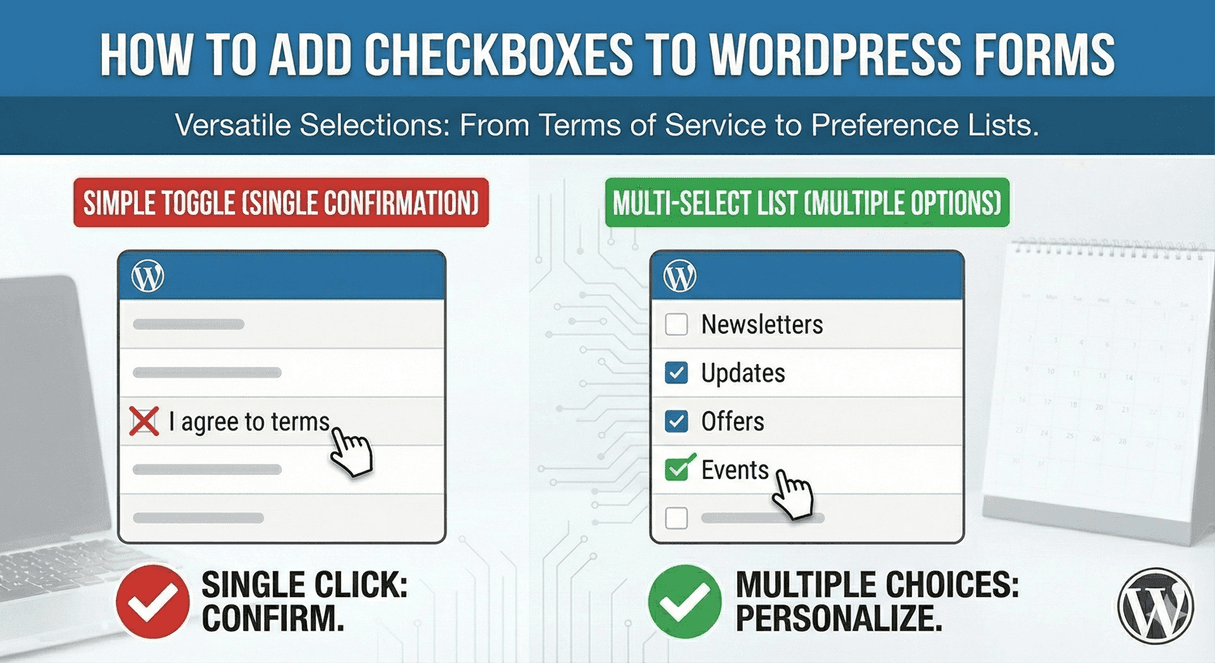
- A single checkbox is one tickbox — “I agree to the terms,” “Subscribe me to the newsletter.” It’s a yes/no, most often used for consent.
- A checkbox group presents several options and lets people select more than one — “Which topics interest you?” with several boxes they can tick.
Same field, two modes, two purposes. Choosing the right one is the first step.
Adding a single (consent) checkbox
For agreement and consent, use a single checkbox and make the label the agreement itself: “I agree to the Privacy Policy.” The single checkbox supports a hyperlink right inside its label, so you can turn “Privacy Policy” into a clickable link, with an option to open it in a new tab so people don’t lose their place on the form. Mark it required and the form won’t submit until it’s ticked. This is the exact setup covered in our guide to terms and conditions checkboxes — essential for any form collecting personal data.
Adding a checkbox group (multi-select)
When people should be able to choose several options, use a checkbox group. List your options clearly and people can tick as many as apply. It’s the right choice for interests, add-ons, topics, or any “select all that apply” question. If your list of options is very long, a multi-select dropdown may be tidier — but for a handful of visible choices, a checkbox group is clearest because every option is on screen at once.
Set required rules correctly
Required behavior differs by mode. For a single consent checkbox, required means it must be ticked to submit. For a checkbox group, requiring it means at least one option must be selected. The required indicator appears on the field’s own label rather than on every individual option, so the form stays clean and clear.
Drive logic from a checkbox
Checkboxes work with conditional logic, so a tick can shape the rest of the form. Reveal a follow-up field only when someone selects a particular option, show extra questions when a box is checked, or use a consent tick to gate what comes next. It turns a simple choice into something the form can respond to.
Common uses for checkboxes
- Consent and terms agreement (single checkbox with a policy link).
- Newsletter and marketing opt-in.
- “Select all that apply” interest or preference lists (checkbox group).
- Add-on or option selection on order and booking forms.
- Account registration consent, alongside user registration.
Add checkboxes the right way
- Choose a single checkbox for consent, a group for multi-select.
- Put a link inside the label for consent boxes, opening in a new tab.
- Set required rules to match the mode.
- Use conditional logic to react to what’s ticked.
Get the mode and configuration right and checkboxes become one of the most versatile fields on your form — handling everything from legal consent to multi-choice questions. And, like the rest of the core, they’re free.
Related reading: Limiting checkbox selections with min/max options and other option with text field on checkboxes.
Ready to add checkboxes to your forms? Install Auto Form Builder free from WordPress.org.
FAQ
What's the difference between a single checkbox and a checkbox group?
A single checkbox is one yes/no tick, ideal for consent. A checkbox group offers several options people can select more than one of, ideal for multi-select choices.
Can I put a link inside a checkbox label?
Yes. The single checkbox supports a hyperlink inside its label — perfect for linking to a privacy policy or terms — with an option to open in a new tab.