
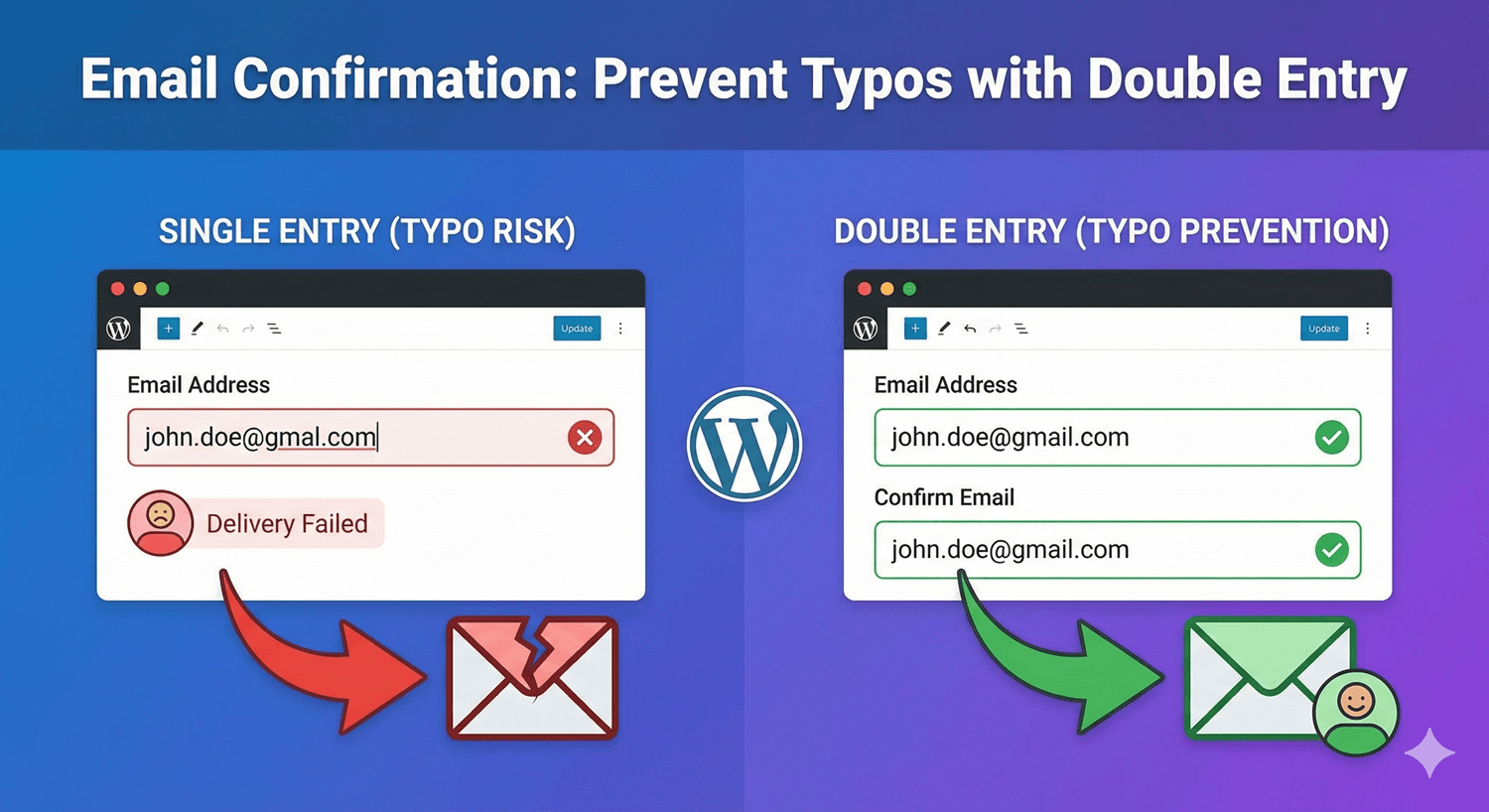
Email Confirmation: Prevent Typos with Double Entry
A single mistyped character in an email address is one of the most expensive small errors in any form. The submission looks perfectly successful — the visitor sees your thank-you message and moves on — but your confirmation bounces, your follow-up never lands, and a genuine lead simply vanishes. You never even know it happened. The fix is simple: ask people to enter their email twice. Auto Form Builder has this built in.
Why one typo costs you a whole lead
Think about what an email address usually carries: the confirmation, the download link, the quote, the account details, the entire follow-up. If it’s wrong by one letter, all of that goes nowhere. Unlike a misspelled name, a wrong email is unrecoverable — you have no other way to reach the person. And because the form still submits successfully, nothing signals that anything went wrong. It’s a silent failure, which is exactly what makes it dangerous.
How the confirmation field works
On the Email field’s options, there’s a setting called Add Confirmation Field. Turn it on and the form shows a second box where the visitor must re-enter their email address. If the two entries don’t match, they’re prompted to correct it before the form will submit. The idea is simple and well-proven: people rarely make the same typo twice, so requiring a match catches the mistake at the exact moment it can still be fixed — while the visitor is right there.
Setting it up
Add an Email field to your form, open its options, and enable Add Confirmation Field. That’s the whole setup. Label the two fields clearly — “Email” and “Confirm Email” — so the intent is obvious, and the field handles the matching and the mismatch prompt for you. No code, no add-on.
When to use it — and when not to
Email confirmation is friction, and friction has a cost, so use it where the payoff is worth it:
- Use it on signups, orders, applications, quote requests, and anything where reaching the person afterward is essential.
- Think twice on quick, low-stakes forms — a simple contact form where a wrong email just means one lost reply may not justify the extra field.
The rule of thumb: the more a wrong email costs you, the more a confirmation field earns its place.
Pair it with other safeguards
Email confirmation catches typos, but it’s most effective alongside your other habits. Every submission is stored in your submissions dashboard regardless, so even entries you can’t email are never lost. And if you only want to accept certain addresses — company domains for a B2B form, for instance — the Email field can restrict which domains it accepts, a complementary way to keep your contact data clean and usable.
A small field that pays for itself
Adding a confirmation field takes seconds and quietly protects every lead that comes through. For any form where you need to reach people afterward, it’s one of the highest-return settings you can enable — and, like the rest of Auto Form Builder’s core, it’s free.
Ready to stop losing leads to typos? Install Auto Form Builder free from WordPress.org.
FAQ
How does the email confirmation field work?
Turning on Add Confirmation Field adds a second box where the visitor re-enters their email. If the two don't match, they're prompted to fix it before the form submits.
Should every form use email confirmation?
Use it where a wrong email is costly — signups, orders, applications, and anything you must follow up on. For low-stakes forms it may be unnecessary friction.