
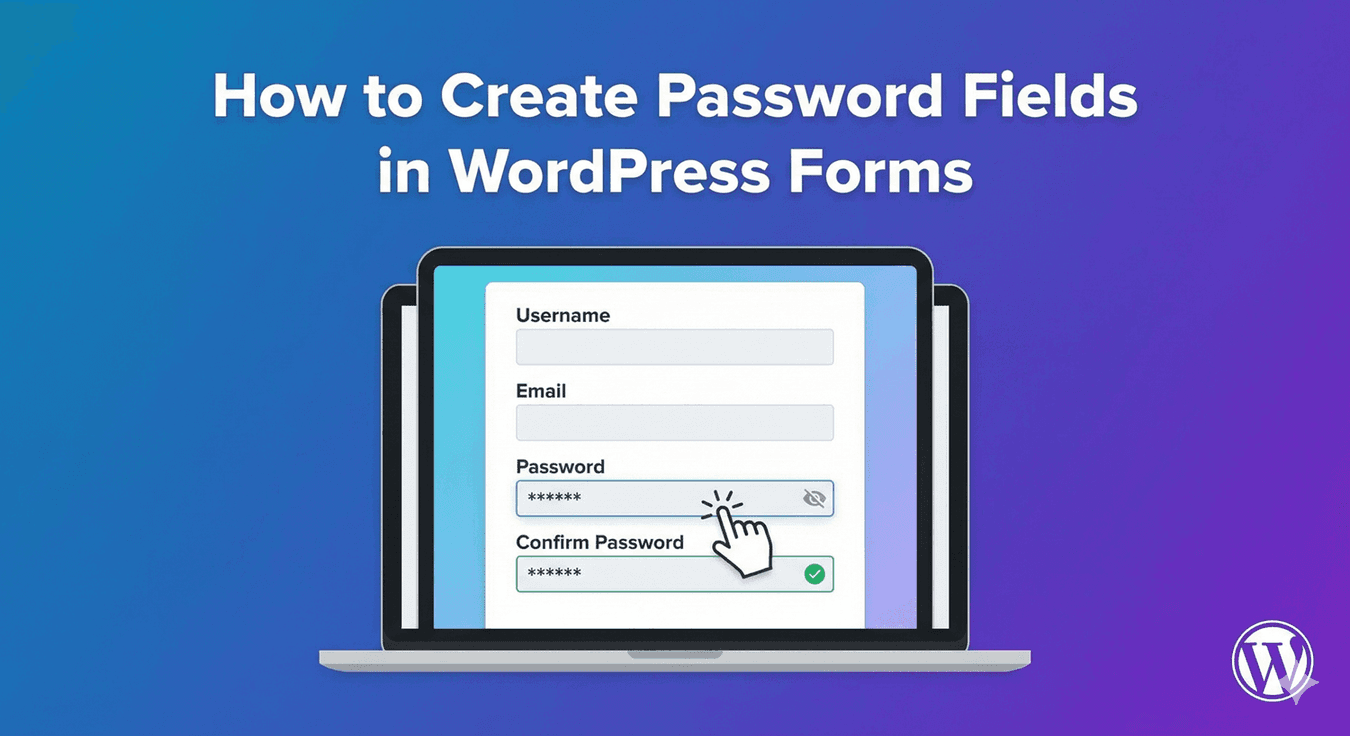
How to Create Password Fields in WordPress Forms
Sometimes a form needs to collect something that shouldn’t be visible on screen as it’s typed — a password for a new account, an access code, or another sensitive value. Showing that in plain text is a privacy problem, especially if someone’s filling in the form in public. Auto Form Builder handles this with a simple option on the Text field: turn on password mode and the input is masked. Here’s how to set it up and when to use it.
Turn a text field into a password field
Add a Text field to your form and open its options. Enable the Password Field setting — described in the builder as masking input as a password, showing dots instead of characters. That’s the whole change: the field now hides what the visitor types, so the value can’t be read over their shoulder or seen on screen. Label it clearly (“Password”, “Access Code”) so people know what to enter.
What password mode changes
Because a password field has a specific job, enabling it adjusts a couple of related options automatically:
- Password mode and Hidden Field mode are mutually exclusive. A field is either masked for the visitor to type into, or hidden from them entirely — it can’t be both, so turning on one disables the other.
- Input Type and Text Transform are turned off while password mode is on. Those settings shape how normal text behaves, which doesn’t apply to a masked value, so the plugin disables them to keep things consistent.
Knowing this up front saves confusion: if you need transformation or a custom keyboard type, that’s a normal text field; if you need a masked value, that’s password mode.
Where a password field fits
The most common use is account creation. If you’re using user registration to create WordPress accounts from a form, a masked password field lets people set their password privately as they sign up. Beyond that, password mode is useful anywhere you collect a value that shouldn’t be visible on screen — an access code for a gated form, a PIN, or a private reference.
A quick note on security: whenever you collect sensitive values, make sure your form is served over HTTPS, and if the value is an account password, rely on your registration flow to handle it properly rather than storing it in plain sight.
Combine with the rest of your form
A password field behaves like any other field, so it works with the features you’d expect. Pair it with conditional logic to show it only in the relevant part of a multi-step signup, add a confirmation step for accuracy, and mark it required so the form can’t be submitted without it.
The bottom line
Adding a password field is a one-click change to a text field, but it makes a real difference to privacy and professionalism on any form that collects sensitive input. Set it up in seconds, use it wherever a value should stay masked, and remember it’s an either/or with hidden mode — and like the rest of the core, it’s free.
Related reading: Hidden fields and how to add text fields.
Ready to build a secure signup form? Install Auto Form Builder free from WordPress.org.
FAQ
How do I add a password field to a form?
Add a Text field and enable the Password Field option. It masks what the visitor types, showing dots instead of characters.
Can a field be both a password field and a hidden field?
No. Password mode and hidden mode are mutually exclusive — a field is either masked for the visitor to type into, or hidden from them entirely.